
The weather, the traffic and the doorbell, on the biggest screen in the house.
Overlook turns an Apple TV into an always-on dashboard you can read from the sofa.

£4.99, once. No subscription, no ads, no account.
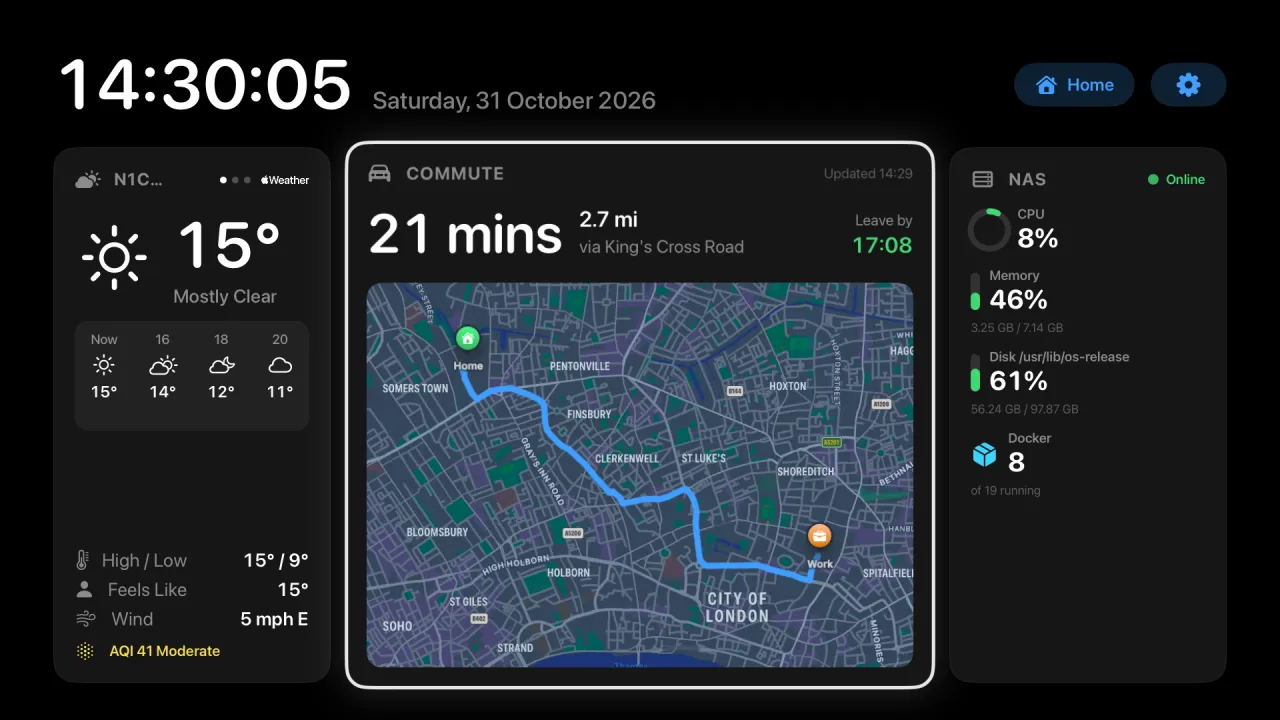
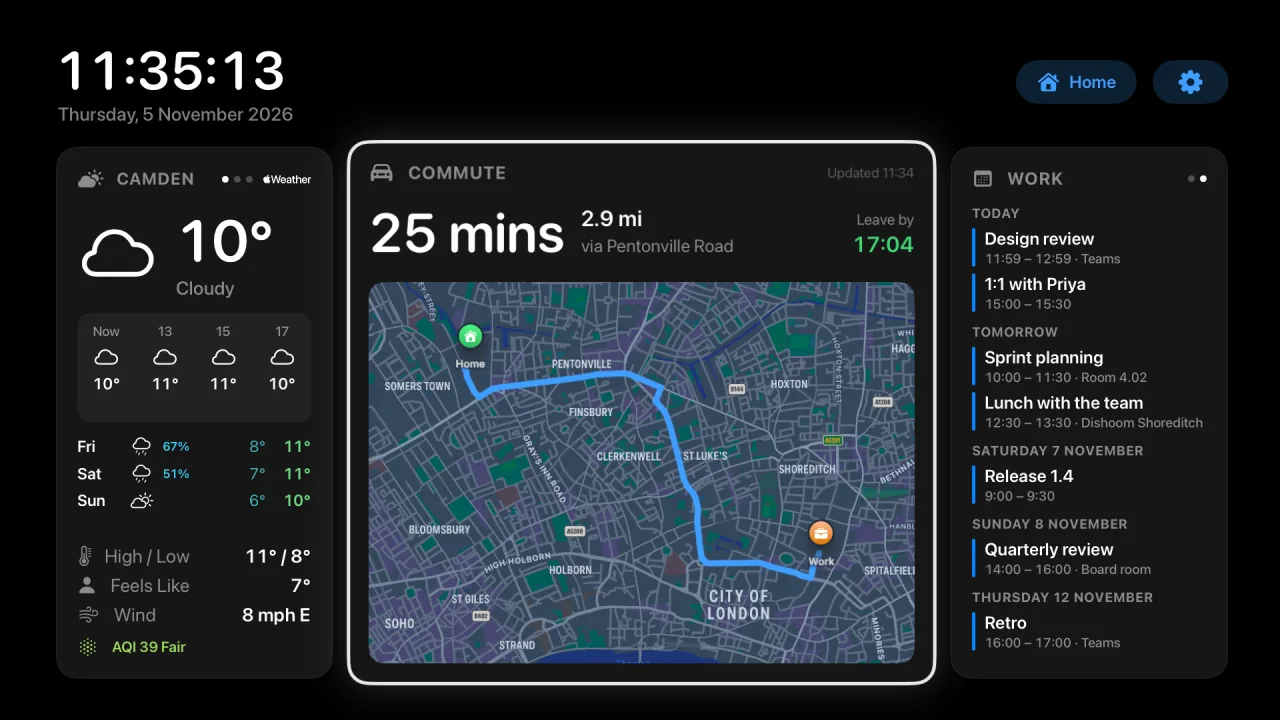
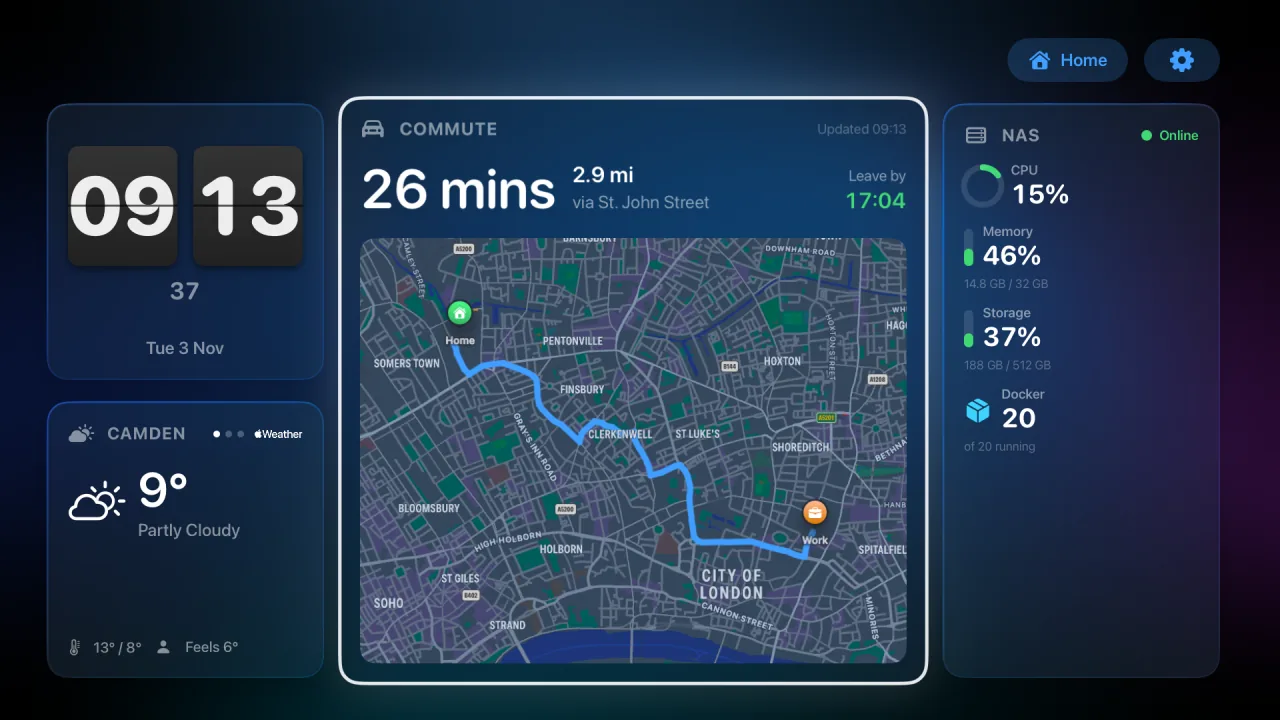
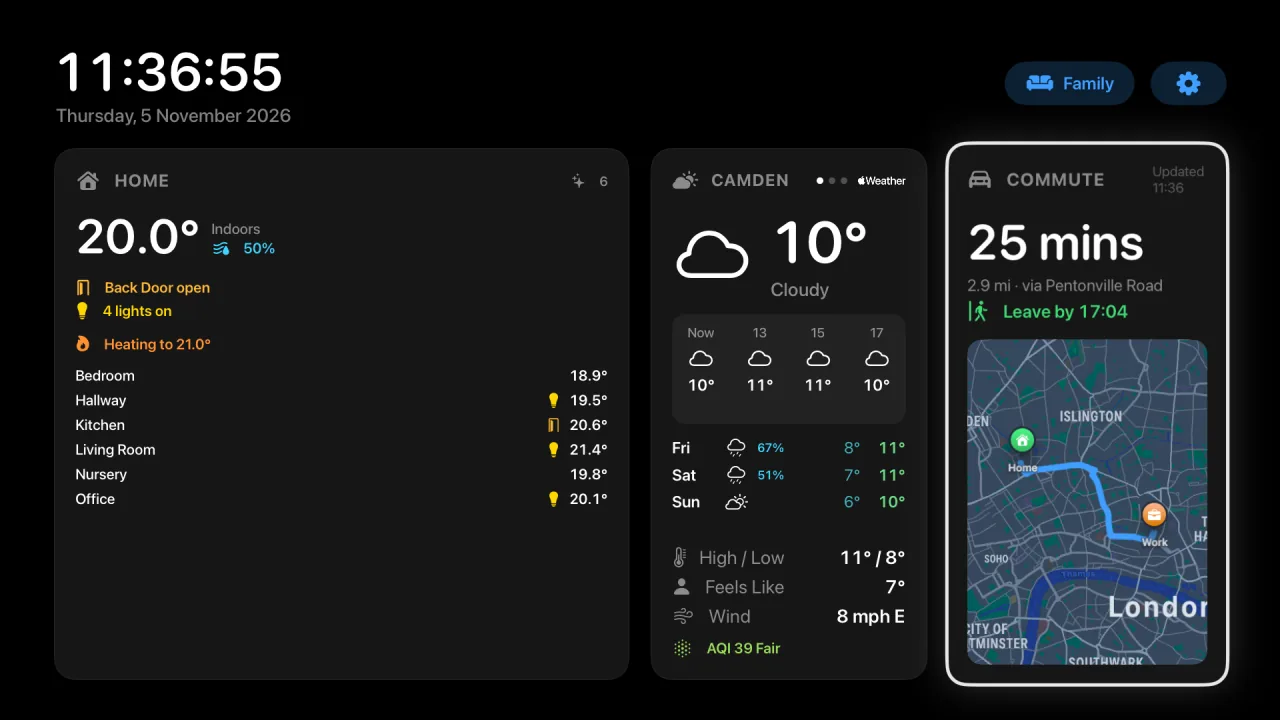
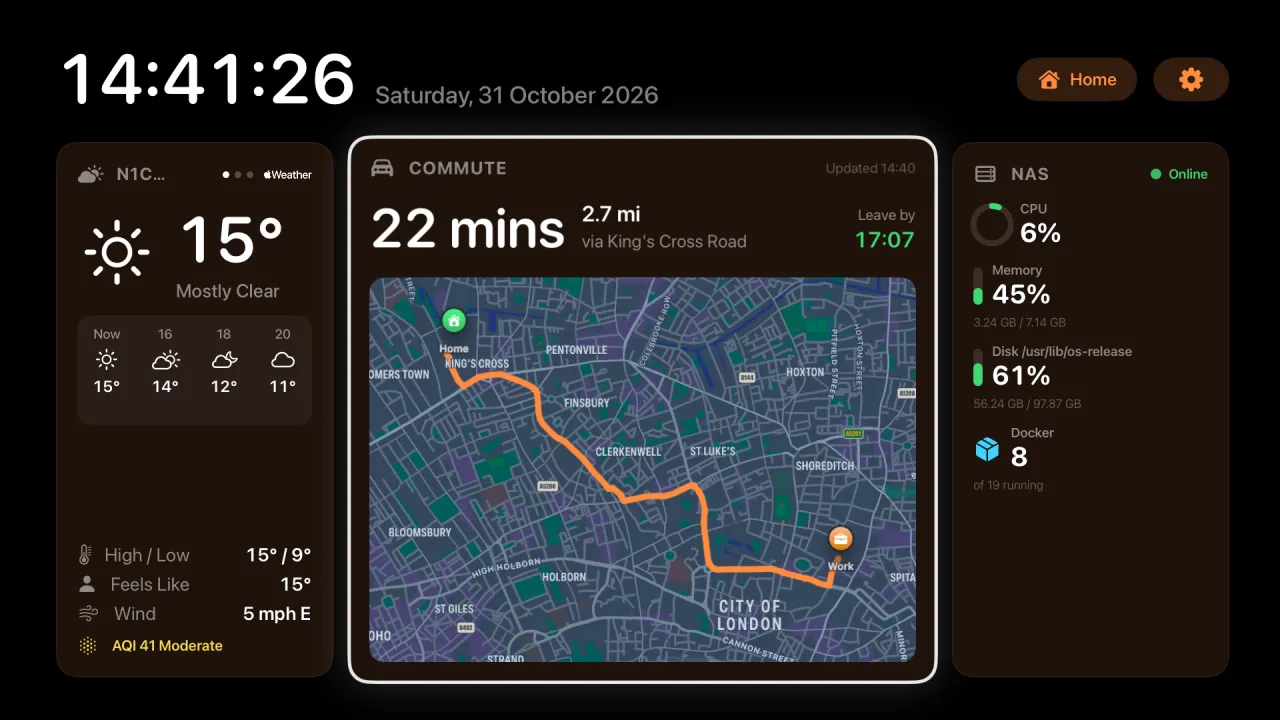
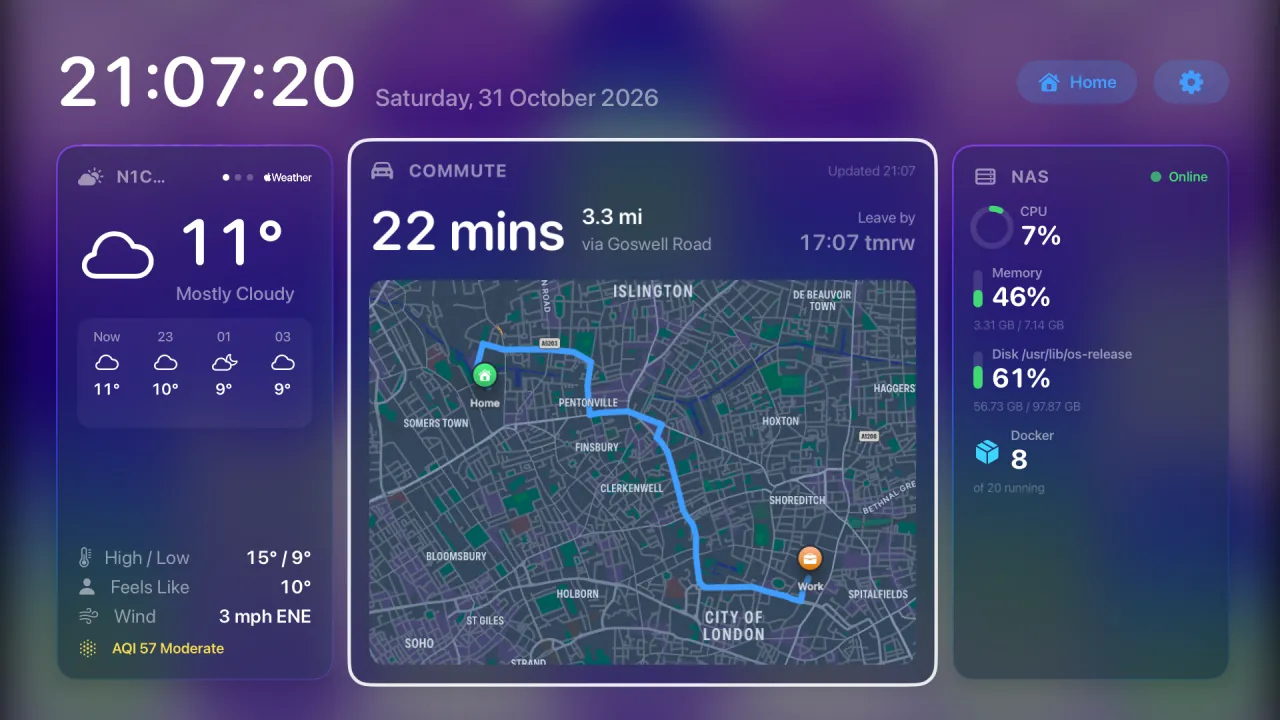
The Home dashboard: weather, the drive to work and the NAS.
A glance from the sofa
Your Apple TV spends most of the day showing a screensaver. It could be telling you whether to take a coat.
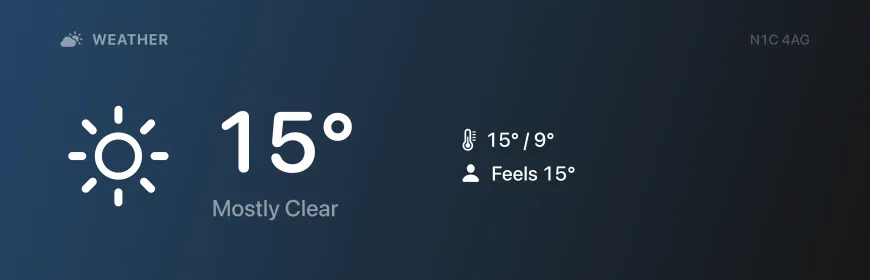
15°Mostly clear. Air quality 41, moderate.
Apple Weather, laid out for a room
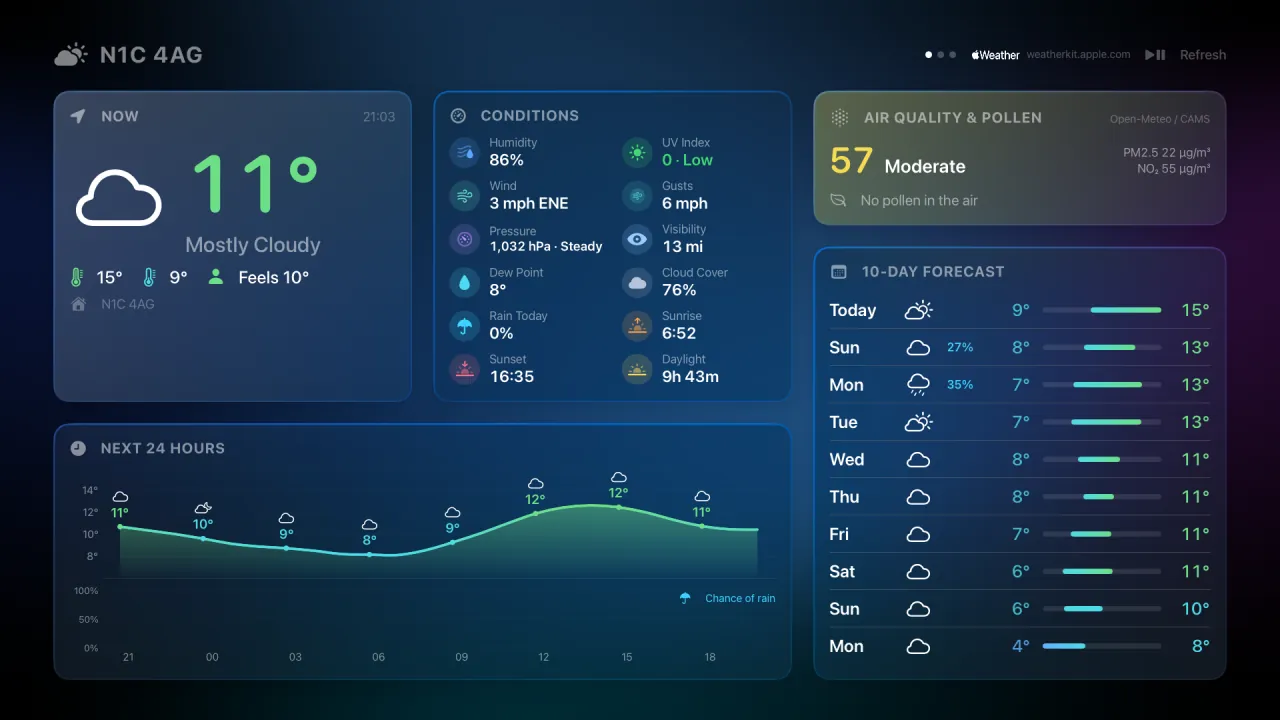
It’s the same WeatherKit data as the Weather app on your phone, sized so you can read it from across the room: the next 24 hours as a chart, ten days of highs and lows, and air quality and pollen.
- Met Office warnings appear on the card when there are any.
- If rain is due in the next hour, it tells you when.
- Add your parents’ town or Friday’s destination, and the card pages through each place in turn.
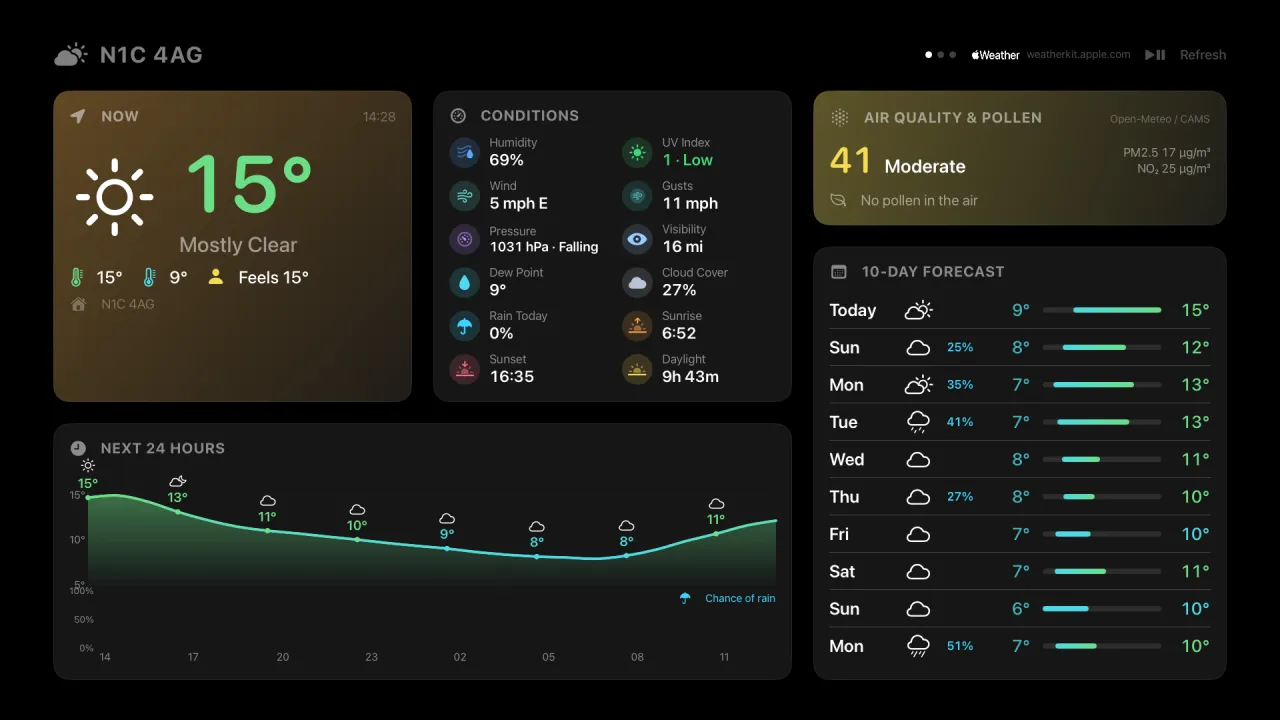
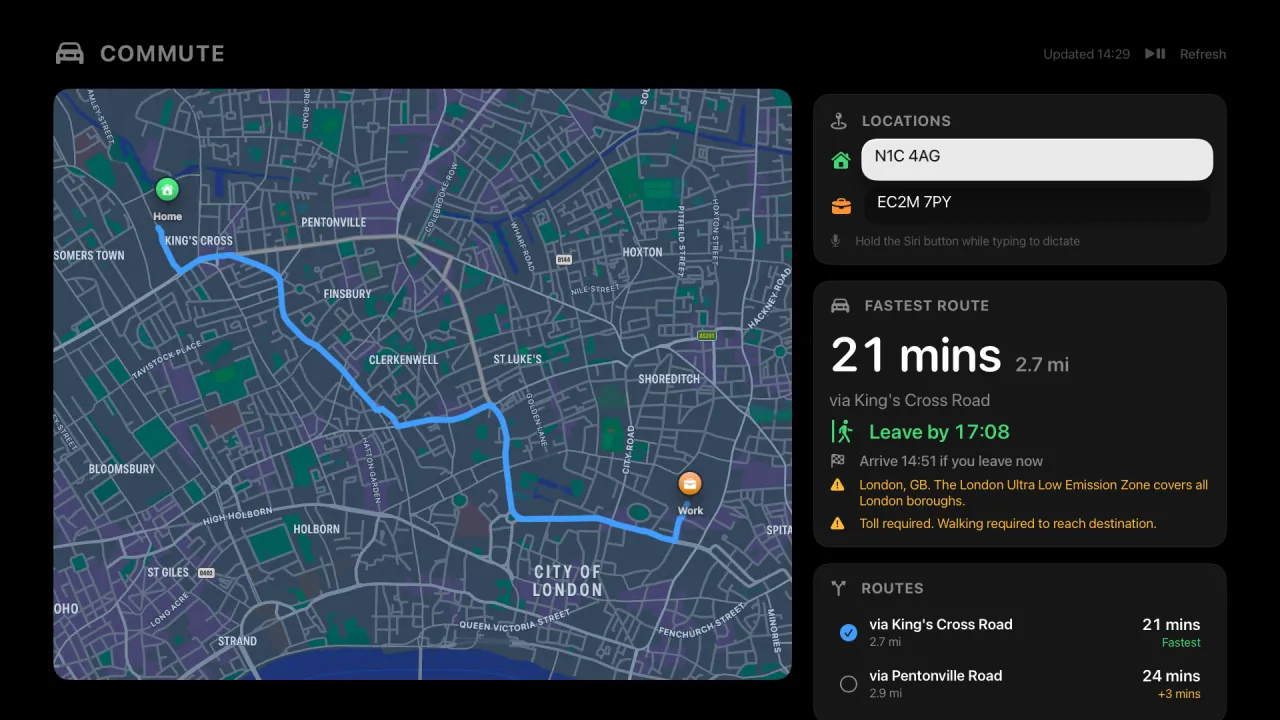
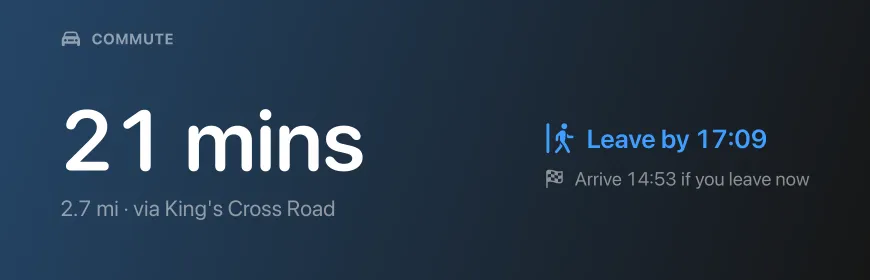
21 minsvia King’s Cross Road. Leave by 17:08.
When to leave, not just how long it takes
Tell it where home and work are and when you need to arrive. Overlook checks live traffic on Apple Maps and counts back from there, so the leave-by time moves when the traffic does.
It lists the slower routes too, so you can see that Pentonville Road is three minutes worse before you find out the hard way.
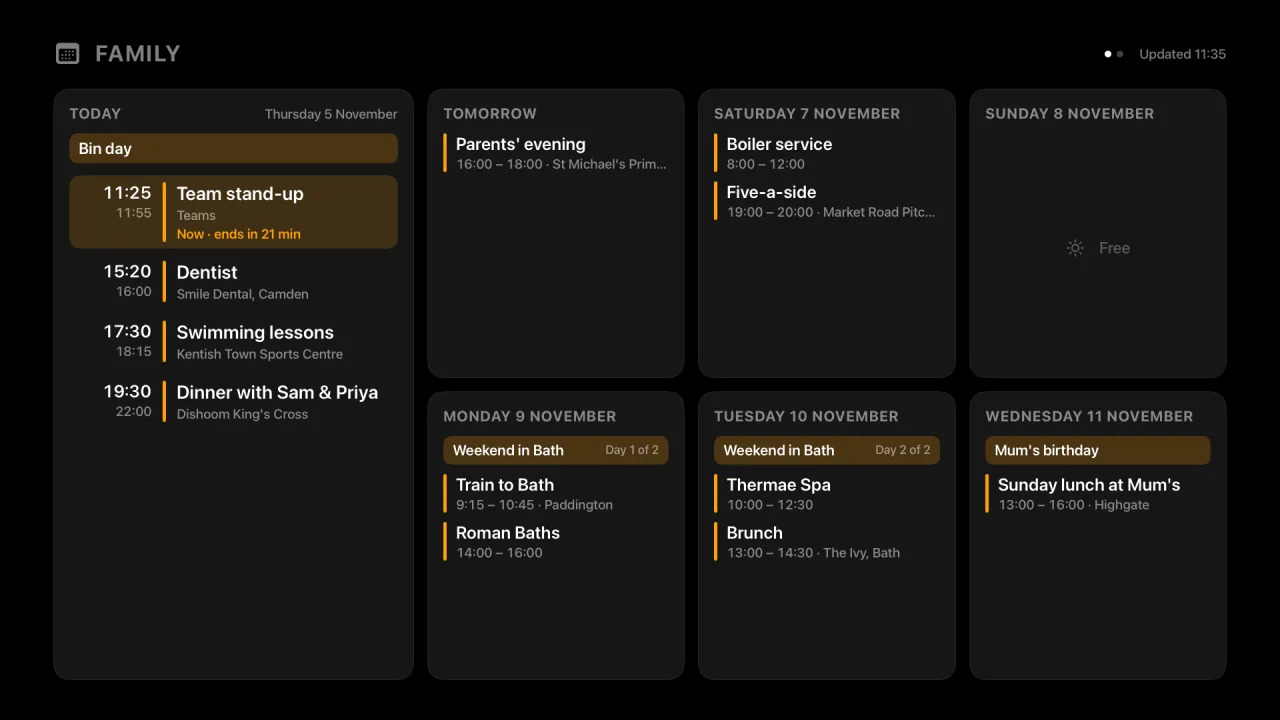
11:25Team stand-up. Now, ends in 21 min.
The week, on one screen
Add published iCloud or Google calendars and the full-screen calendar lays out today and the six days after it.
- Today’s events in a column of their own, with whatever’s on now highlighted and how long it has left.
- All-day events across the top of each day, and trips that span days marked Day 1 of 2.
- Days with nothing on just say Free.
One card, several calendars
Add as many published calendars as you like, each with an optional name. Every calendar gets its own page on the Calendar card.
- The card pages through them on its own, like the Weather and Servers cards, every 10 seconds to 2 minutes, or not at all.
- Swipe left or right on the card, or in full screen, to change page.
- The Top Shelf calendar banner combines the next events from every calendar.
A clock worth looking at
Put a Clock card on any dashboard, in any of eleven styles, and set kitchen timers that ring on the TV.
The Clock card
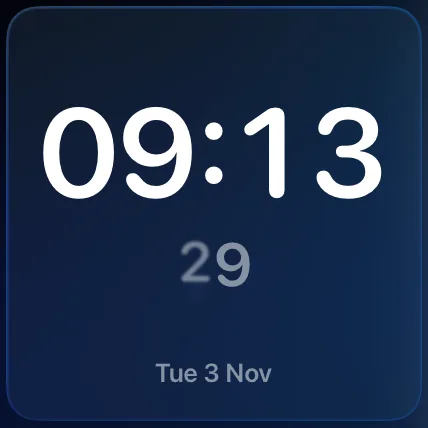
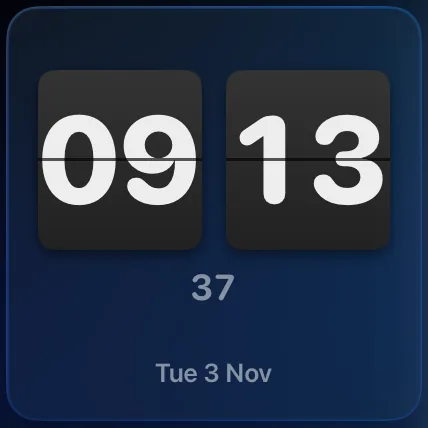
- Eleven styles, from flip digits and a word clock to a railway clock and Roman numerals.
- Small (1×1) or wide (2×1), with seconds and the date if you want them.
- With the Clock card on a dashboard, the clock and date in the top bar step aside, so the time isn’t shown twice.
- The clocks follow your region: 24-hour in the UK, and 12-hour without AM or PM in the US.
 Digital
 Flip
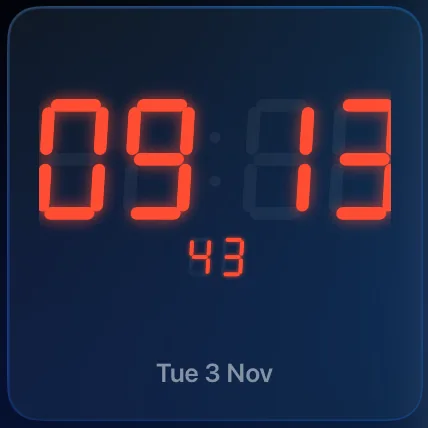 LED
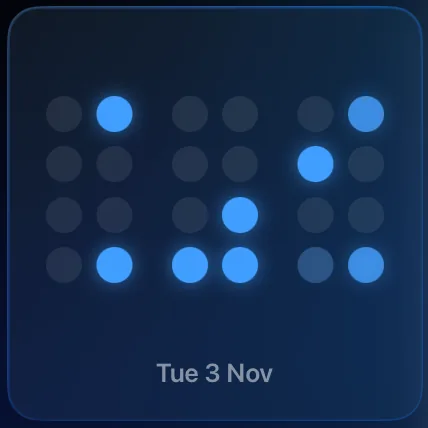 Binary
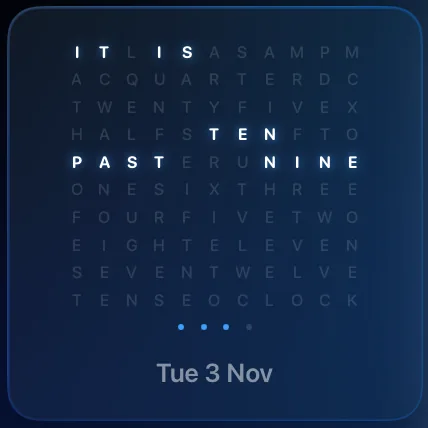 Words
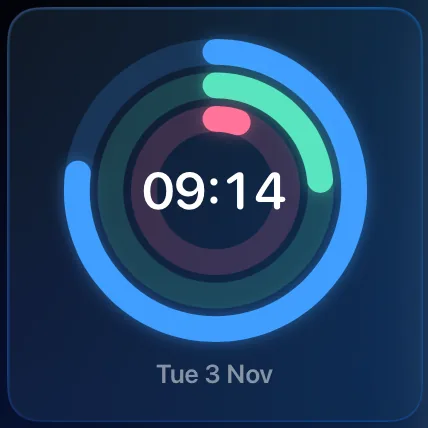 Rings
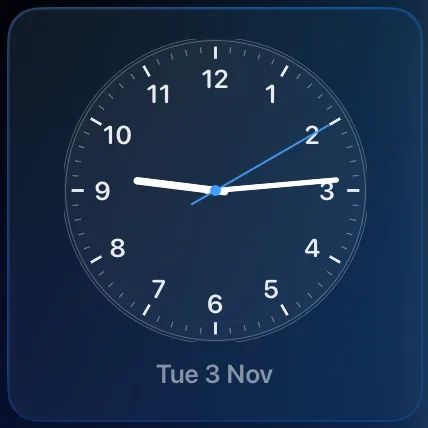 Classic
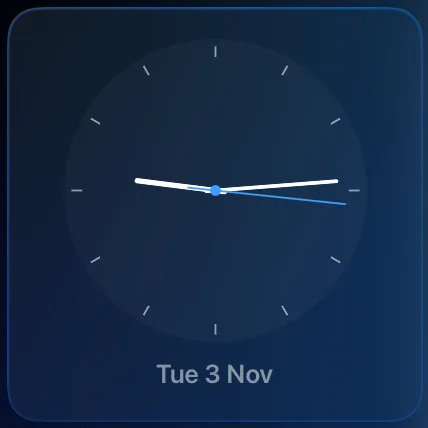 Minimal
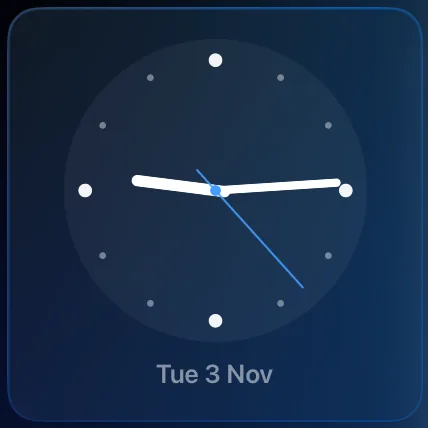 Modern
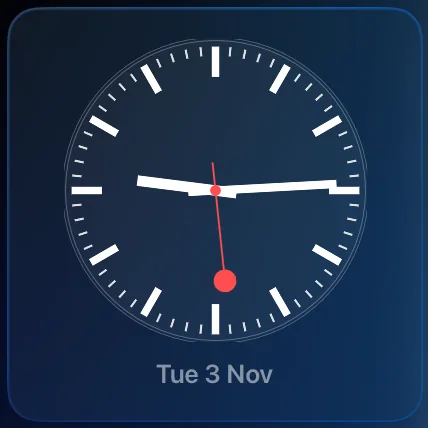 Railway
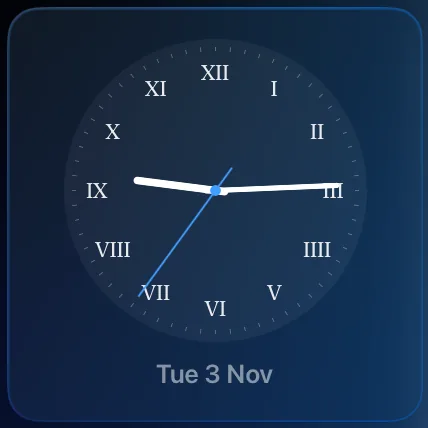 Roman
Kitchen timers
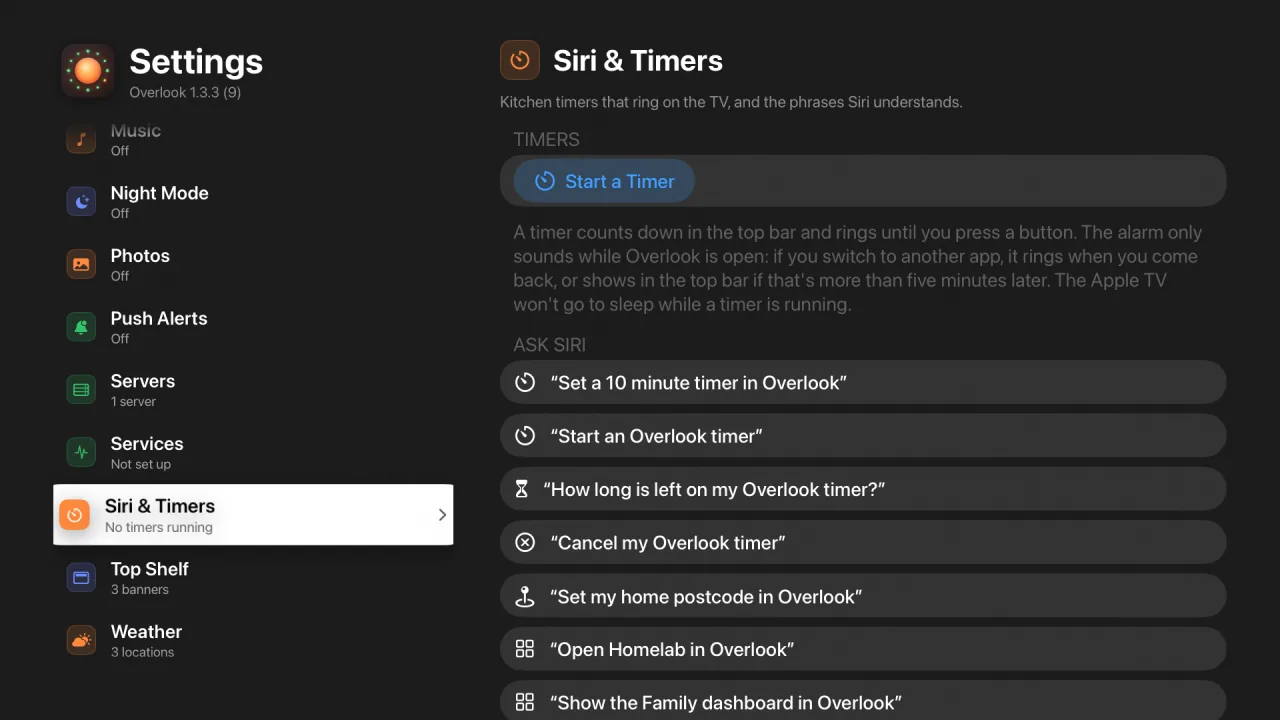
Ask Siri, or start one from Settings. Say “Set a 10 minute timer in Overlook”, or “Start an Overlook timer” and Siri asks for how long. There are preset timers you can ask for by name, and Siri can check or cancel a timer too.
- Starting a timer brings Overlook to the front.
- Running timers count down in the top bar, and you can cancel them from there.
- When a timer finishes, it rings with a chime until someone presses a button. After five minutes it stops and moves to the alert bar.
- The Apple TV won’t go to sleep while a timer is running.
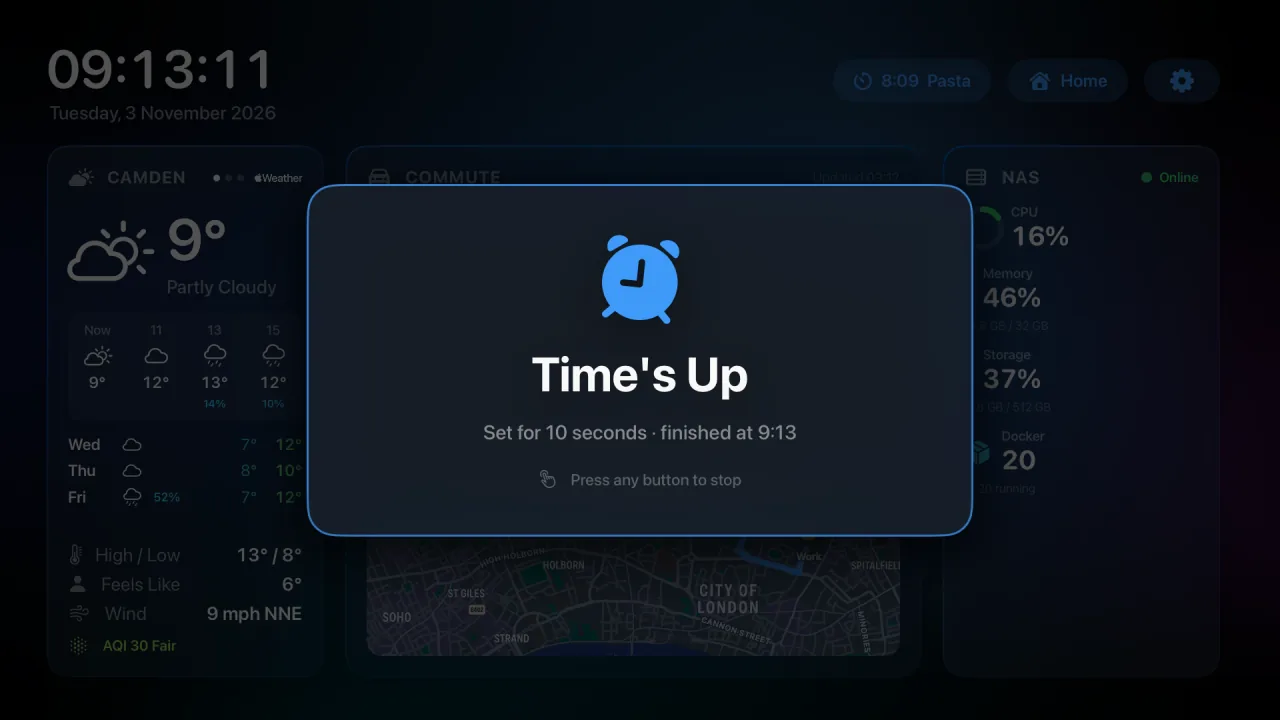
Settings › Siri & Timers lists the phrases Siri understands and has a Start a Timer button, so a timer never depends on your voice.
The alarm only rings while Overlook is on screen. tvOS doesn’t let apps play sound in the background, which is why starting a timer brings Overlook to the front.
Apple Music, with the dashboard still up
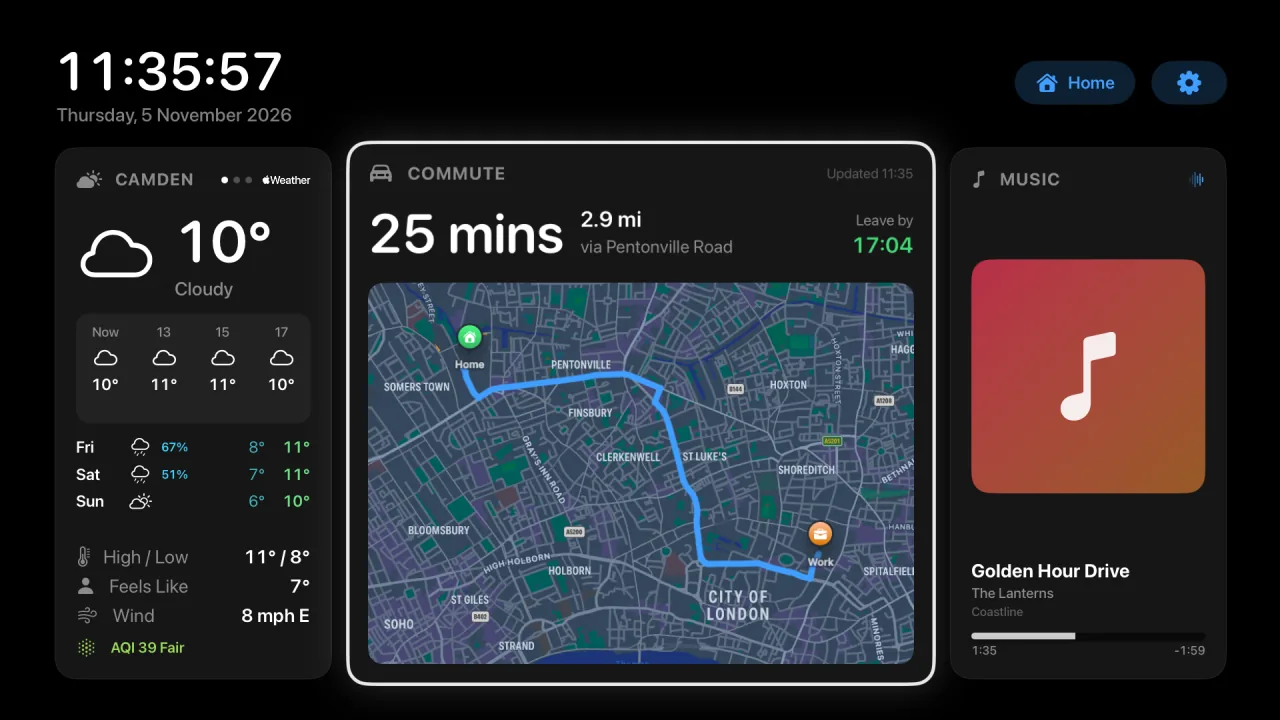
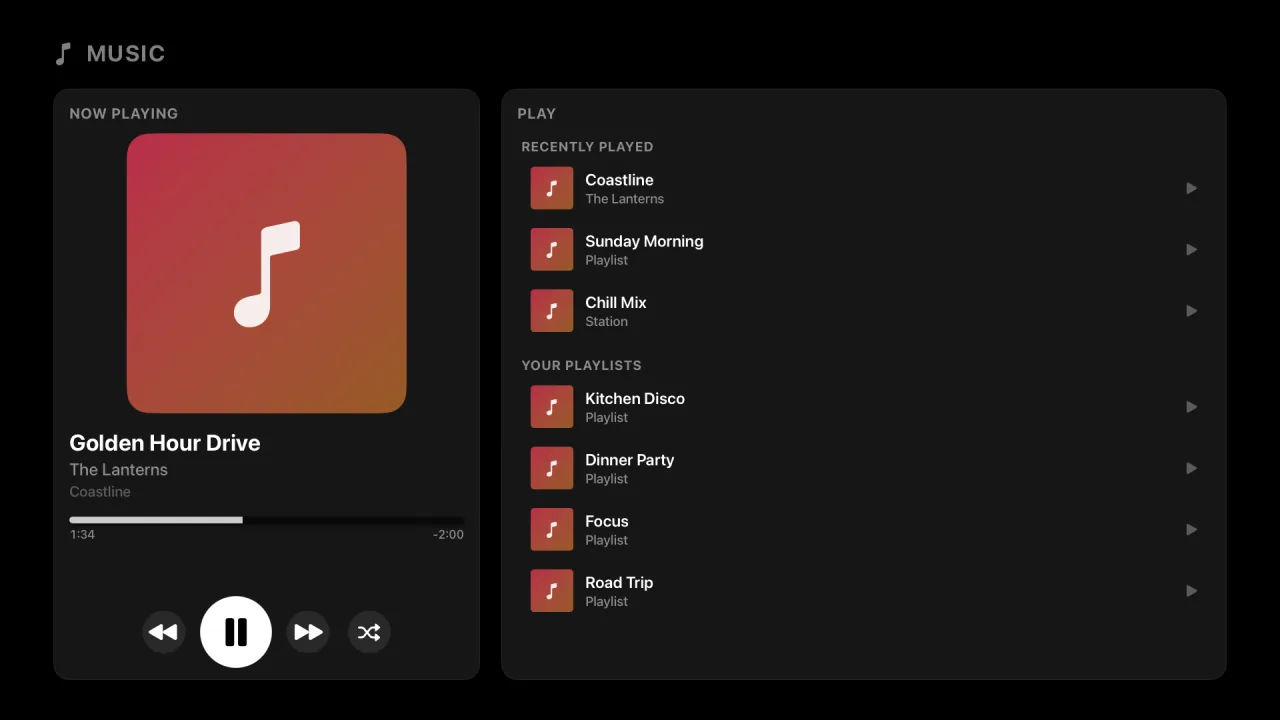
Play a playlist, album or station on the Apple TV through Overlook, and the Music card shows what’s on.
The Music card
- Shows the track, artist, artwork and progress at every card size.
- The music carries on while the dashboard stays on screen.
- Needs an Apple Music subscription. It’s off until you switch it on in Settings › Music.
Pick something to play
Open the card full screen to choose from Recently Played, Your Playlists and Made for You. Now Playing has previous, play/pause, next and shuffle, and the Play/Pause button on the remote works too.
It only shows music started from Overlook. tvOS doesn’t let apps see what another app is playing, so music from the Music app or Spotify won’t appear on the card.
Your home, on the big screen
If it’s in Apple’s Home app, Overlook can put it on the TV: the rooms, the lights, the scenes and whoever’s at the door.
Everything at a glance
- Average indoor temperature and humidity across your HomeKit sensors.
- Doors and windows left open are highlighted in amber, with the room name.
- See how many lights are on, and where.
- A room-by-room list with temperatures, which grows as you make the card bigger.
- If a thermostat is heating, the card says so, for example Heating to 21.0°.
Run a scene, dim a light, warm the house
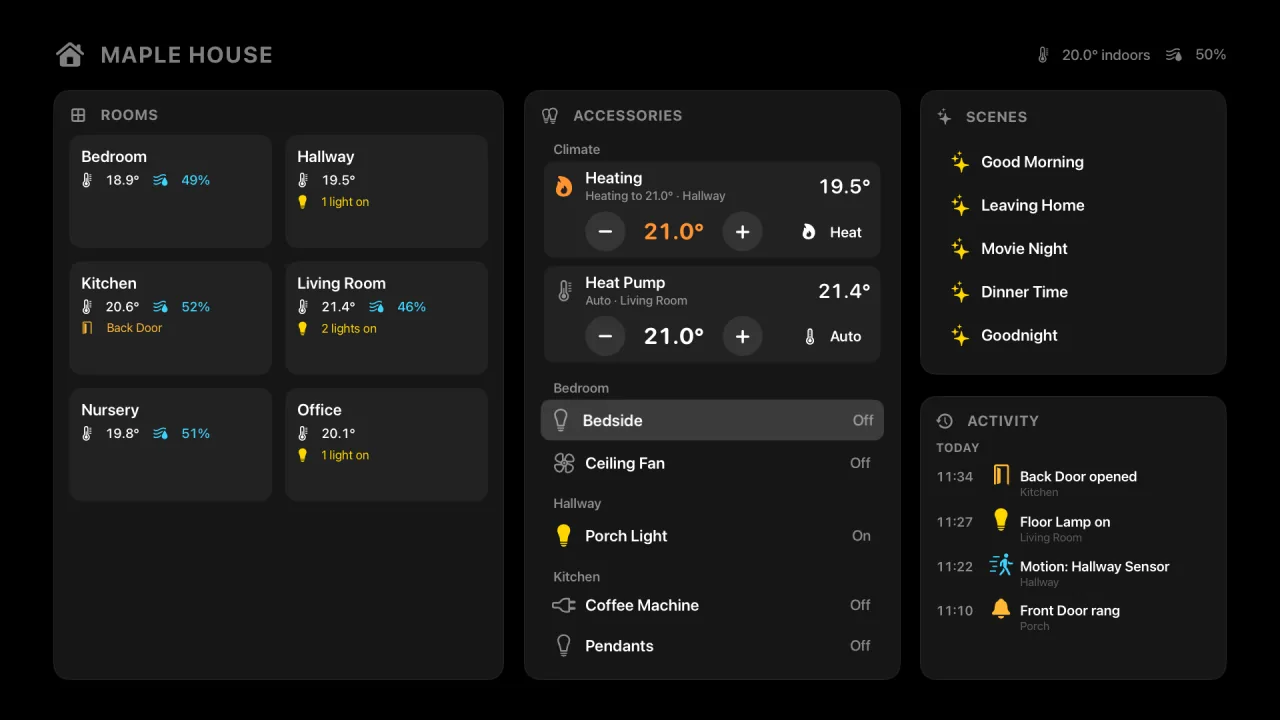
- Click the Home card for a full-screen view of every room.
- Run any of your HomeKit scenes, such as Good Night, Movie Time or Leaving Home, with the Siri Remote. A tick confirms each scene ran.
- Switch lights, switches, outlets and fans on and off from the Accessories panel. A row flips straight away, and flips back if the accessory doesn’t respond.
- Press and hold a dimmable light to set its brightness, from 100% down to 10%, or a fan to set its speed. The row shows it, such as On · 60%.
- A Climate section for HomeKit thermostats, such as Tado, Hive or Nest through Matter. Each shows the current temperature and whether it’s heating, with − and + for the target and a menu of the modes it supports: Off, Heat, Cool or Auto.
Know who’s at the door
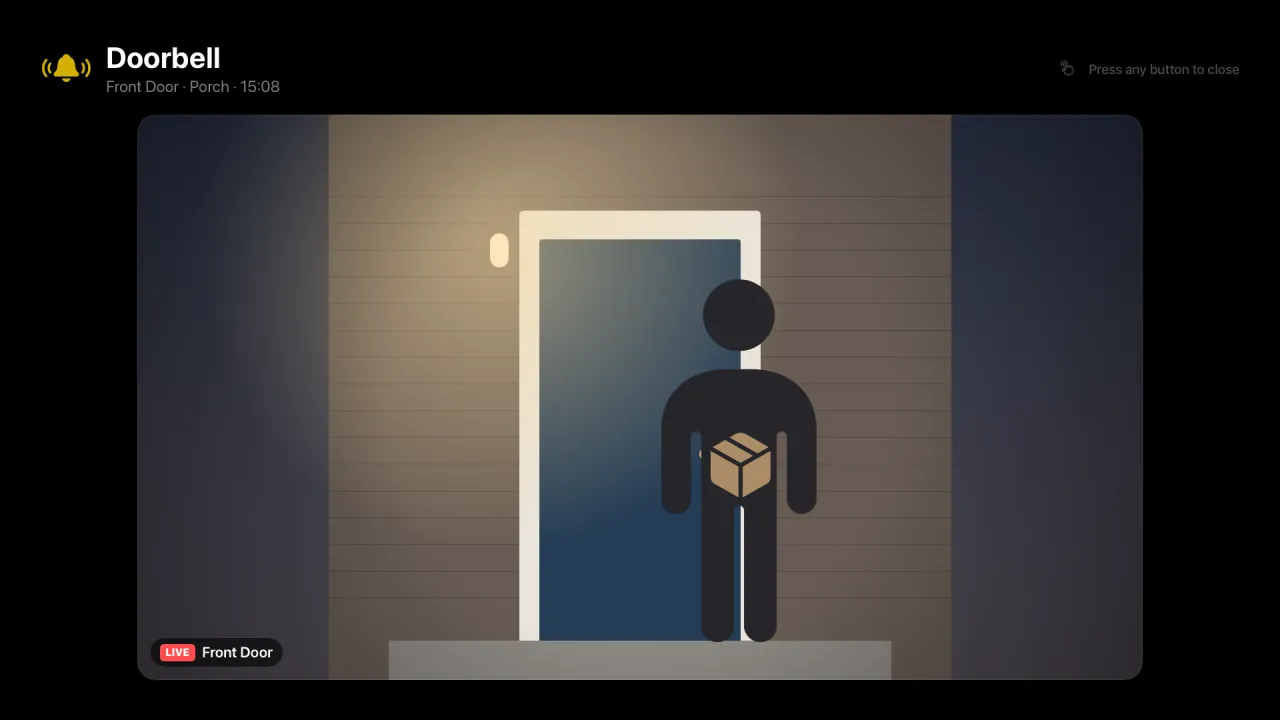
- Live HomeKit camera feeds on your dashboard: one, two or four at once depending on the card size, and swipe for more.
- Open any camera full screen and swipe left or right to switch between them.
- When someone rings the doorbell, or a camera sees motion, a pop-up with the live view appears over the dashboard.
- Choose which cameras appear and in what order, and whether pop-ups are for the doorbell, motion or both.
What happened while you were out of the room
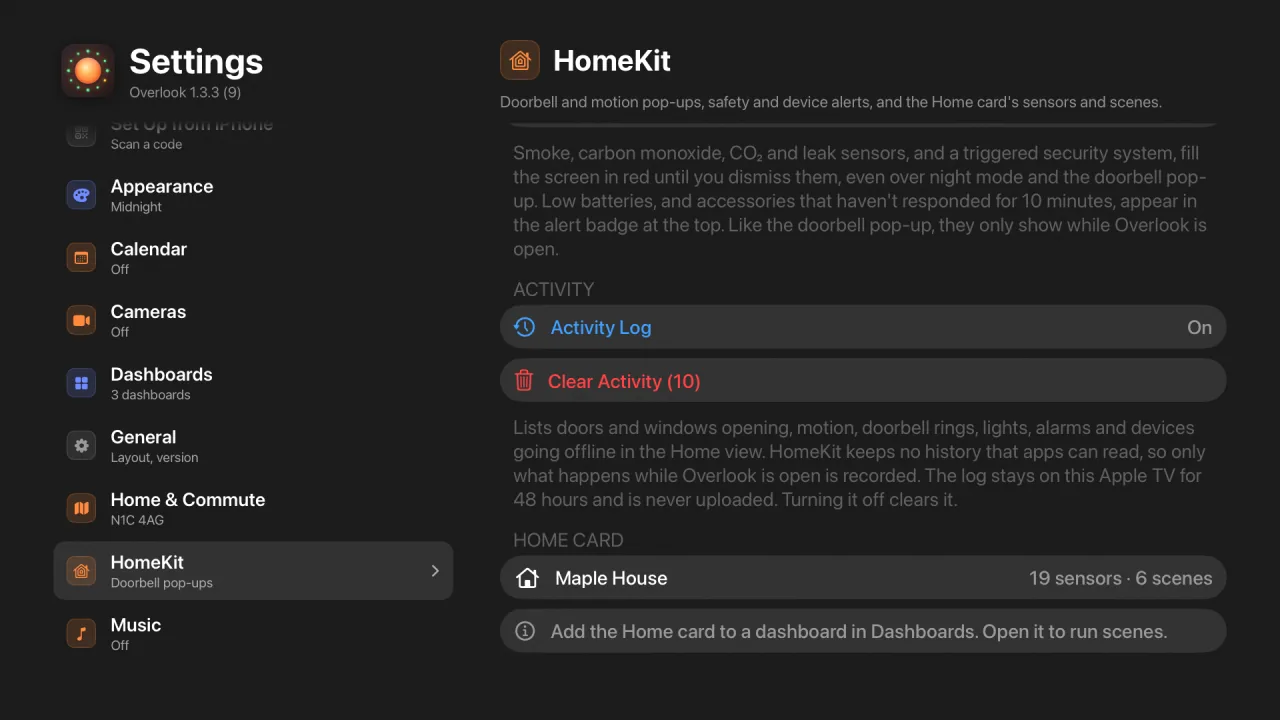
An Activity panel in the Home view lists what happened, newest first: doors and windows opening and closing, motion, doorbell rings, lights switching, alarms going off and clearing, and devices going offline or coming back.
- It only covers the time Overlook was open, because HomeKit keeps no history that apps can read.
- The log stays on that Apple TV for 48 hours and is never uploaded.
- Clear it, or switch it off, in Settings › HomeKit.
Private by design. Overlook talks to HomeKit directly on your Apple TV. Camera feeds and sensor readings never leave your home: no cloud, no account, no recording.
Requires accessories set up in Apple’s Home app. The Home card and safety alerts are on from the start, so Overlook asks for HomeKit access the first time you open it. Cameras stay off until you turn them on in Settings. Either way, nothing leaves your home.
Safety alerts
If an alarm goes off while Overlook is on the TV, you’ll know which one, and in which room.
Hard to miss
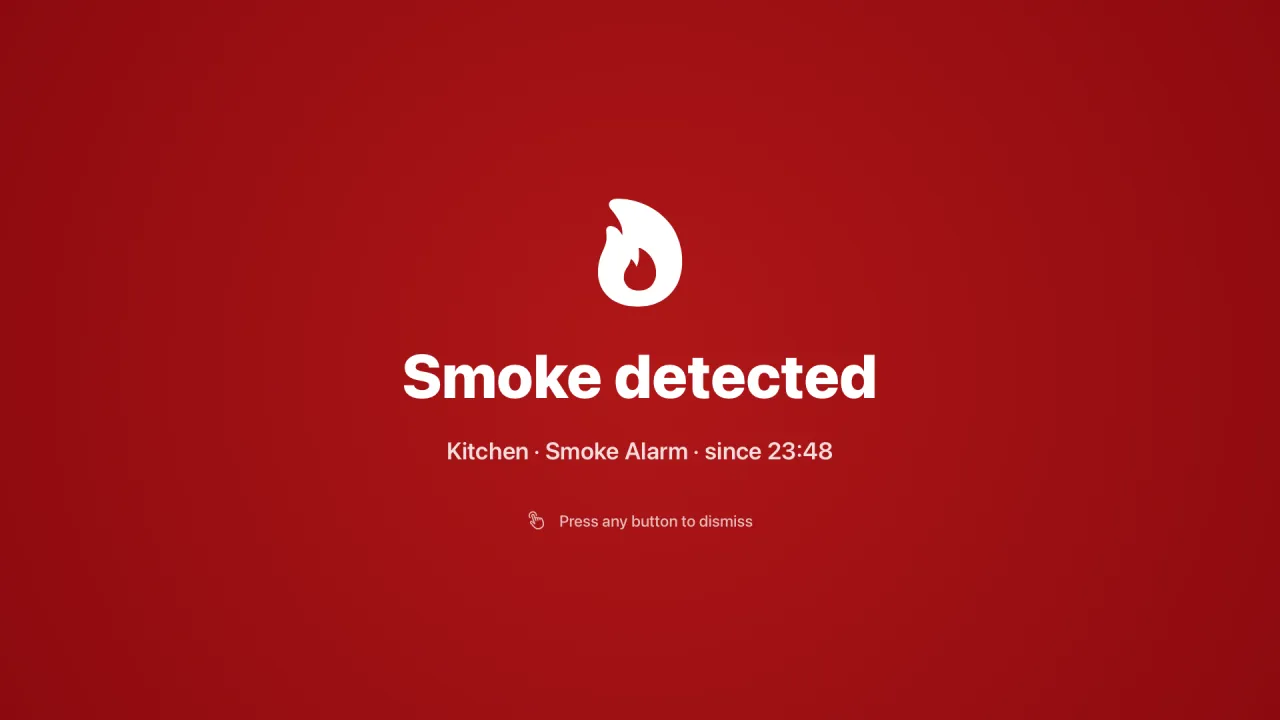
- Smoke, carbon monoxide, CO₂ and leak sensors, and a triggered HomeKit security system, fill the screen in red, naming the room and the device.
- The alert stays up until you dismiss it or the alarm clears, and sits above everything, night mode and the doorbell pop-up included.
- If the alarm goes off again, the alert comes back.
No more dead door sensors
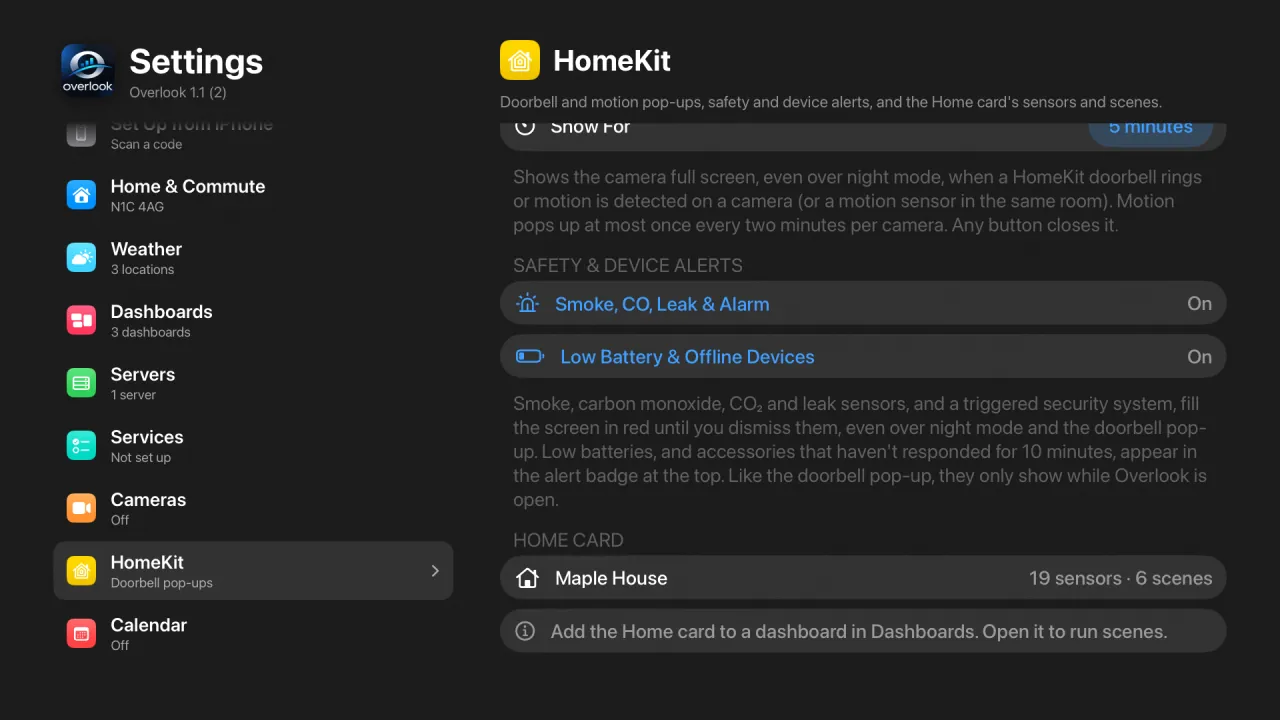
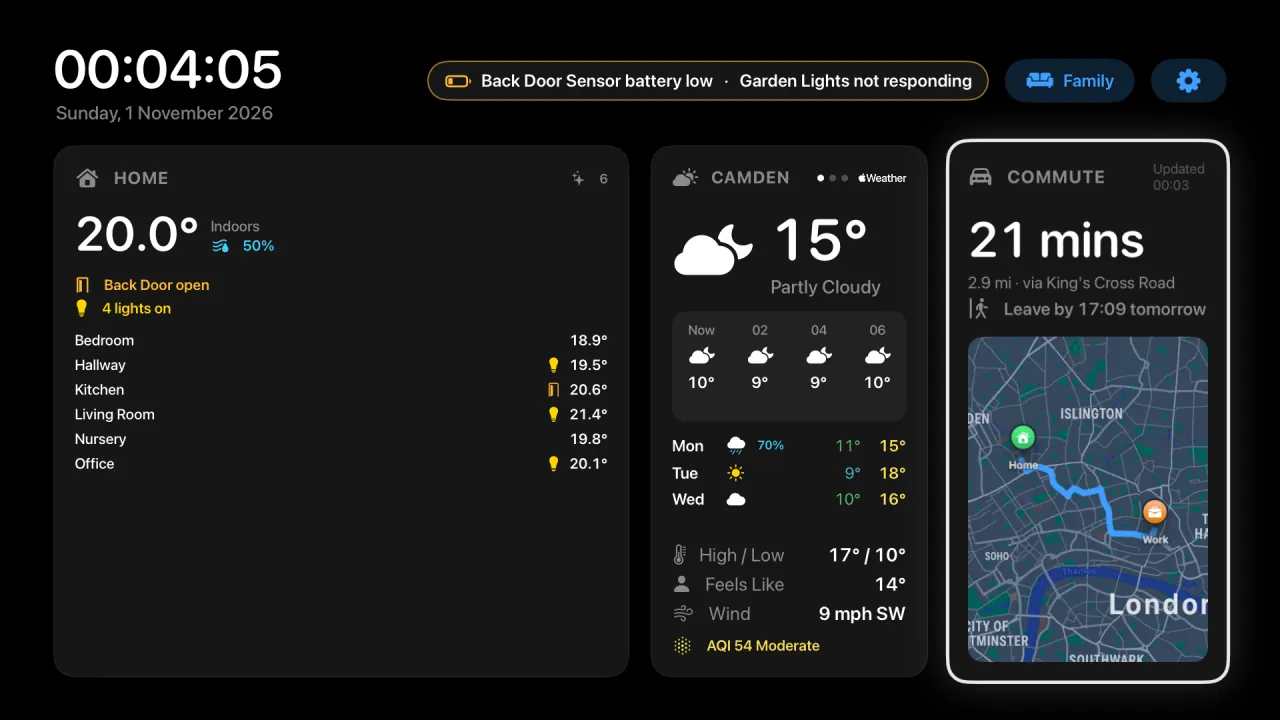
Low batteries, and accessories that stop responding for 10 minutes, scroll through the alert bar at the top, so a dead door sensor doesn’t go unnoticed.
Both kinds of alert are on from the start. Switch either off in Settings › HomeKit.
Use it alongside, not instead of, your alarm’s own sound and phone notifications. Like the doorbell pop-up, alerts only show while Overlook is open on the TV, because tvOS doesn’t let apps draw over other apps.
For your homelab
If you run a NAS, a Proxmox box or a Raspberry Pi with more containers than you’d like to admit, this part is for you. Overlook talks to the tools you already run, over your own network.
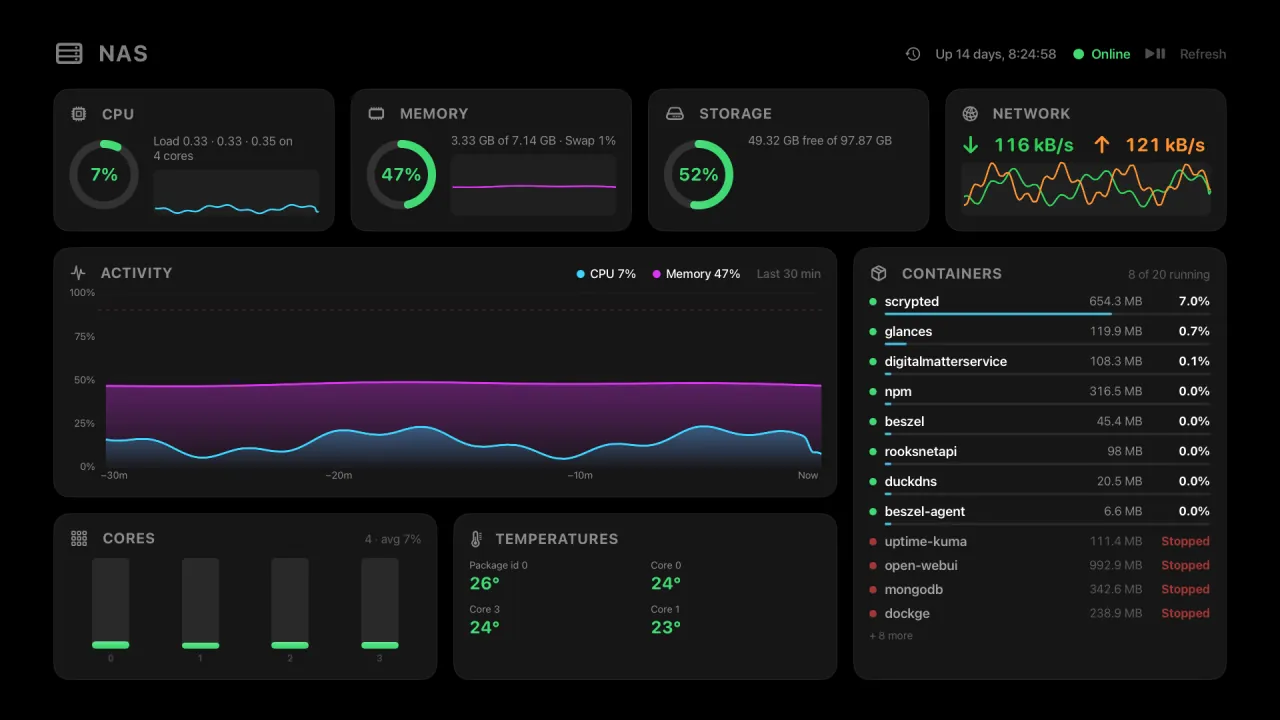
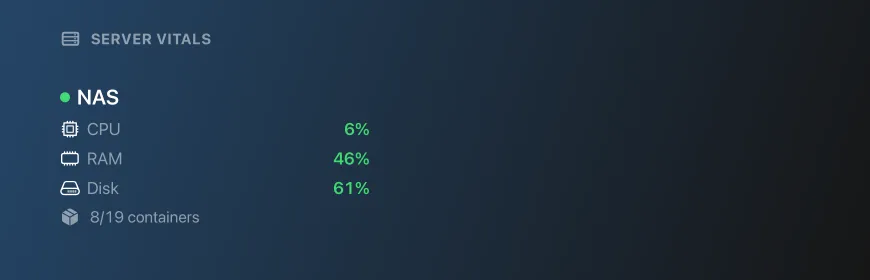
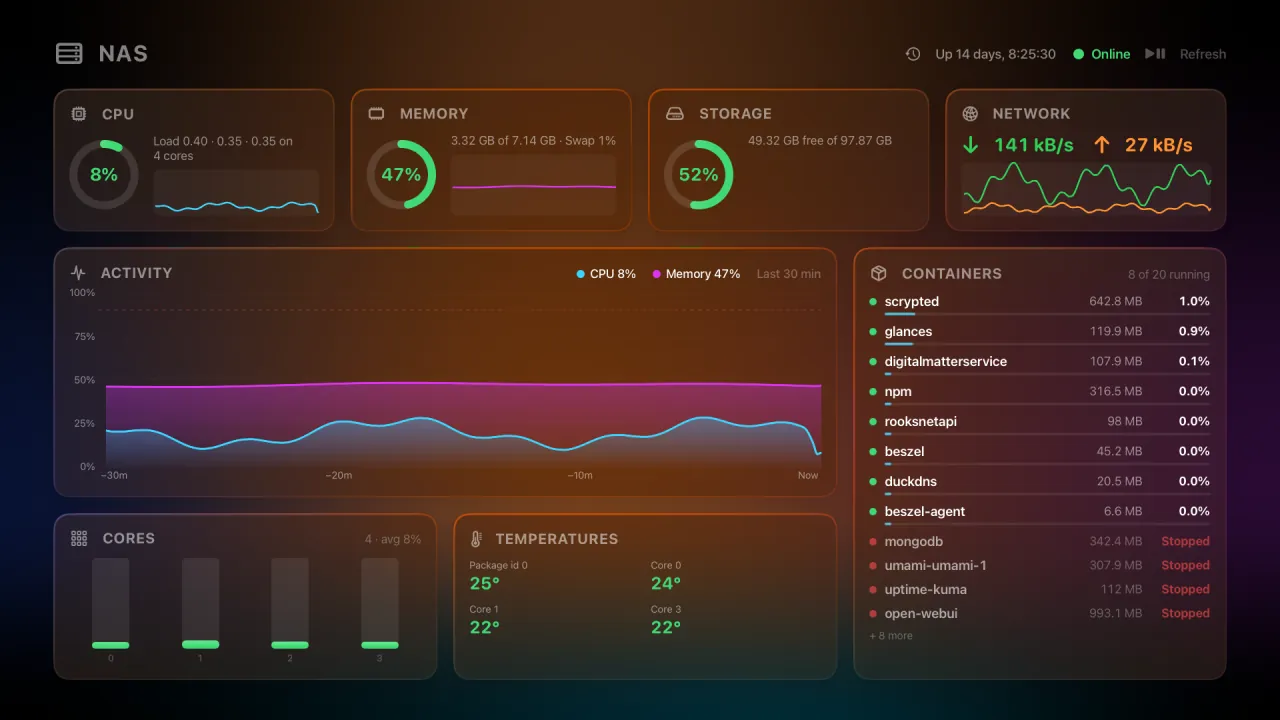
A NAS up 14 days with 8 of 20 containers running. CPU and memory over the last half hour, the busiest containers first, and storage that counts each disk once. It’s marked stale after one missed poll and offline after three, so one dropped request won’t set it off.
- Glances
- CPU, memory, disk, network, temperatures and Docker containers from Glances v4 (
/api/4/all). Add several servers and the card pages through them. - Uptime Kuma
- Reads your public status pages. No API key, nothing extra to install.
- Home Assistant
- Any entity you name, read with a long-lived token that stays in the Apple TV’s Keychain.
- Alerts
- A banner across the dashboard when a server drops off, CPU, memory or disk crosses a threshold, a container stops, a monitor goes down or an entity goes unavailable.
Plain HTTP on 192.168.x.x is fine. None of it leaves the house.
Push alerts
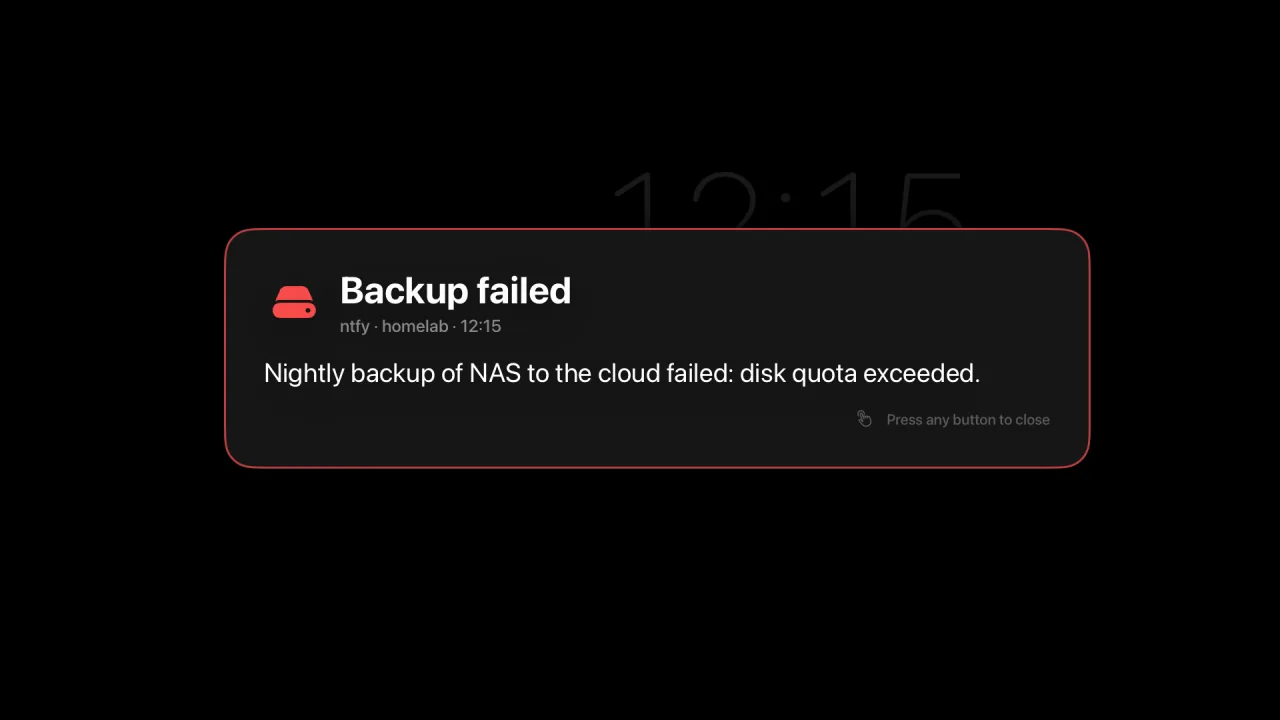
The TV shows messages from ntfy, Home Assistant, your scripts or anything else on your network. Backup failed, the washing’s done, someone’s at the gate.
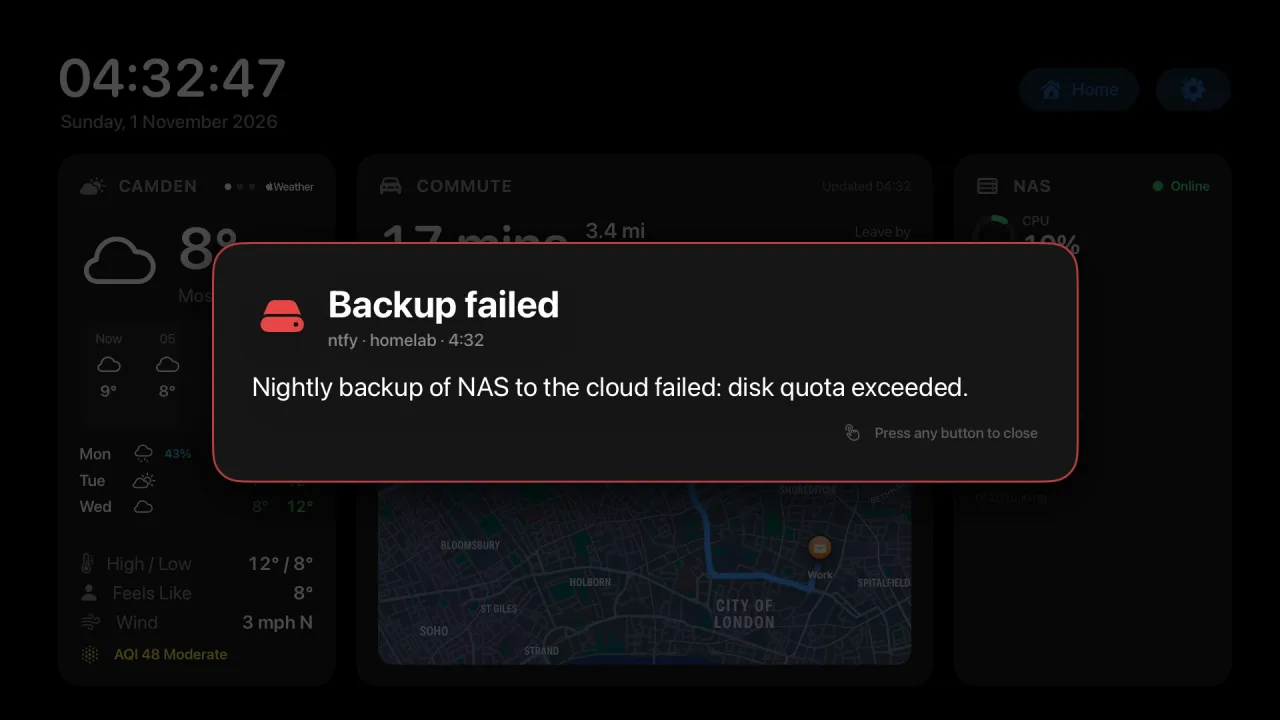
- Urgent and high
- A pop-up over the dashboard, even over the night clock, that stays until someone presses a button. Several queue up behind each other. Left waiting, it drifts slowly and dims overnight, so it won’t burn into an OLED screen.
- Default
- A toast slides in at the top for ten seconds while the dashboard carries on underneath.
- Low
- Low-priority messages, and anything sent while Overlook was closed, wait in the alert bar at the top. They stay for as long as you choose, from 5 minutes to 12 hours (an hour unless you change it).
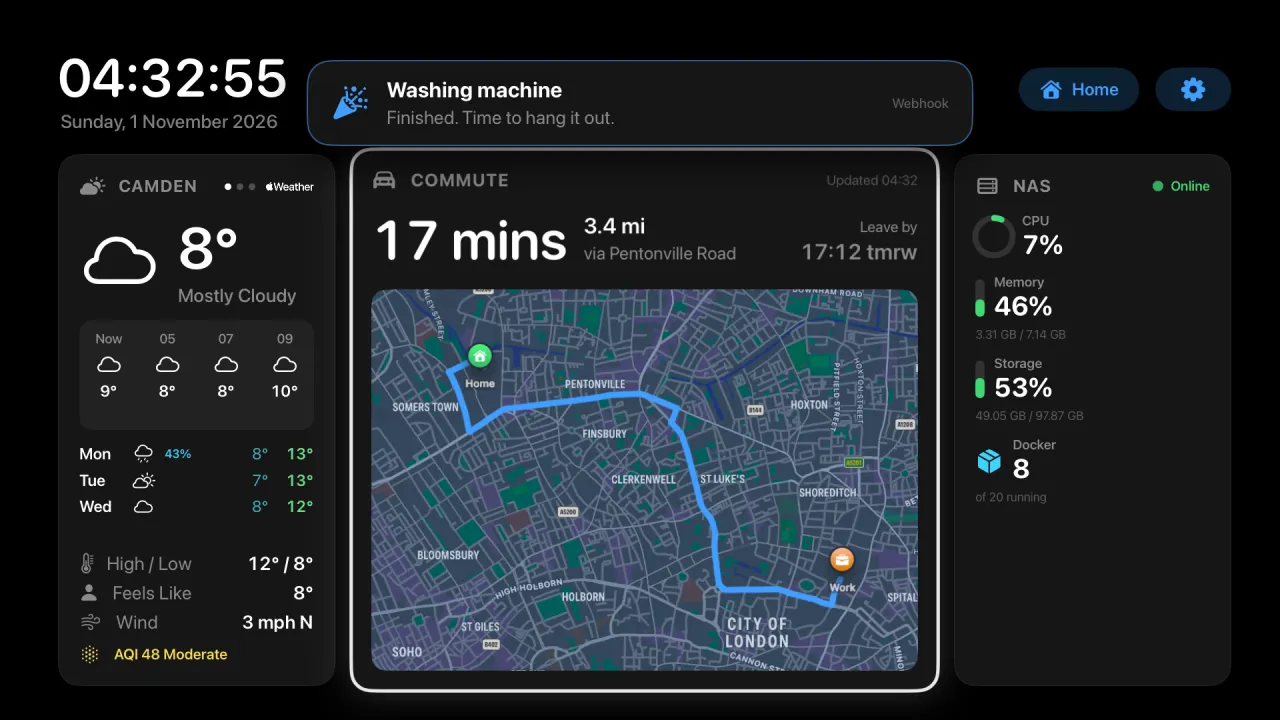
Default priority: a toast, gone after ten seconds.
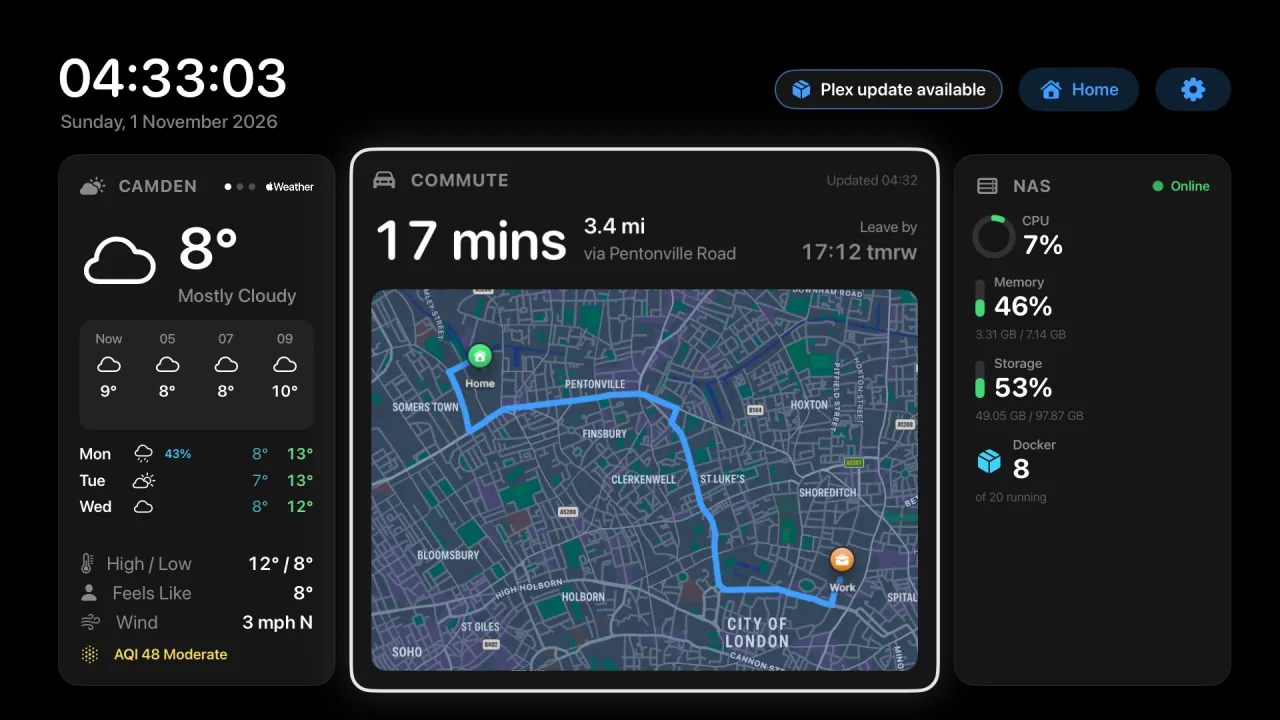
Low priority: a quiet note in the top bar.
From ntfy, or straight from your network
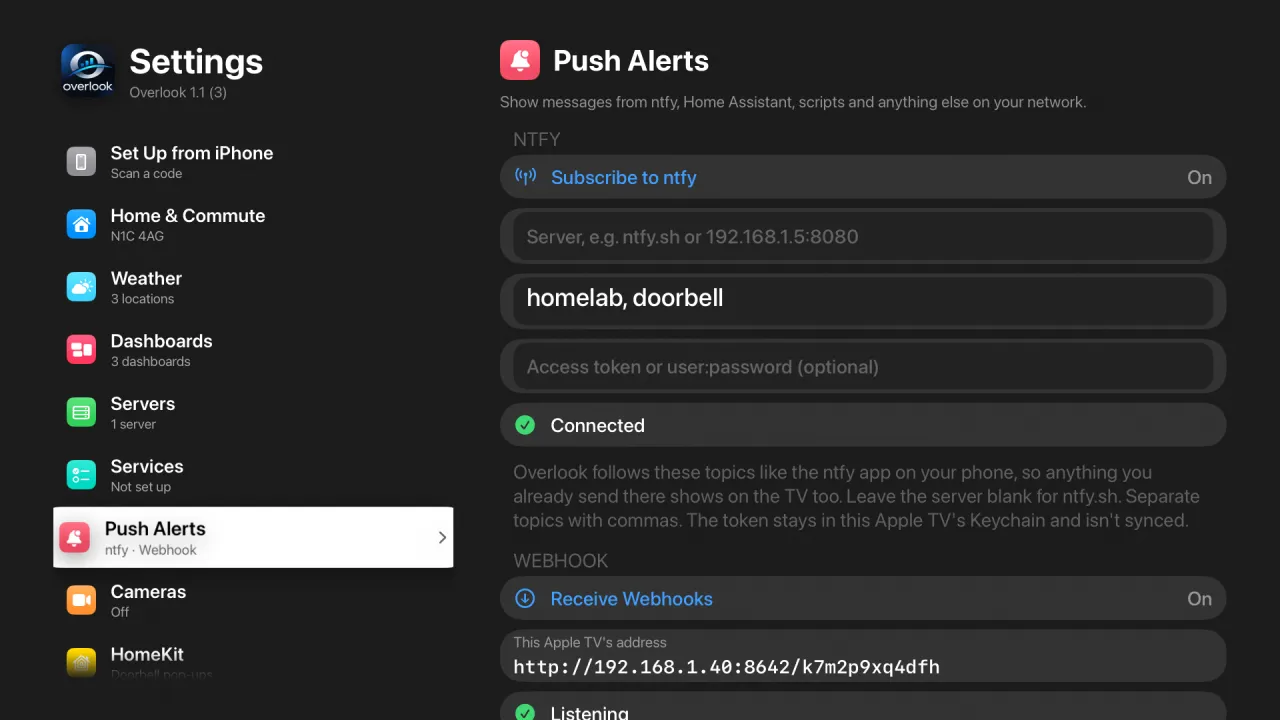
ntfy. Subscribe to one or more topics on ntfy.sh or your own ntfy server. Anything you already send to them turns up on the TV, as it does in the ntfy phone app. When Overlook opens, it catches up on the last hour of messages.
Webhook. Each Apple TV has its own local address, http://<apple-tv>:8642/<secret>. Post to it from Home Assistant’s RESTful notify, a shell script, curl or anything else on your home network.
curl -H "Priority: urgent" -H "Title: Backup failed" \
  -d "Disk quota exceeded" \
http://192.168.1.40:8642/k7m2p9xq4dfh- The body is the message. Add ntfy-style
Title,Priority(1–5) andTagsheaders, use query parameters, or send JSON. - Tags pick the icon, using ntfy’s emoji short codes:
warning,tada,package,floppy_diskand so on. - An ntfy access token, or user and password, stays in the Apple TV’s Keychain and isn’t synced.
- The webhook only answers on your home network. Make a New Address stops the old one working.
Messages only appear while Overlook is on screen, as with the doorbell pop-up. None of them pass through a server of mine, because there isn’t one: they come straight from your ntfy server or your own network.
Yours, not ours
Nobody wants the same screen at 7am and 10pm. Set it up once and it changes itself.
Six colour schemes
They tint the cards and highlights. Status colours stay green, amber and red whatever you pick, because “red” shouldn’t depend on your taste.
- Midnight
- Ocean
- Ember
- Forest
- Aurora
- Graphite
Top Shelf banners
Put Overlook in the top row of the Home screen and its banners rotate above it: weather, commute, servers or your calendar. You see the numbers without opening the app.
And if typing a postcode with a remote sounds like a punishment, ask Siri: Set my home postcode in Overlook.
Made for OLED
A dashboard is on screen all day, so the first question is burn-in. This is everything Overlook does about it.
The dashboard never sits still
- The whole dashboard drifts along a slow path, up to 10 points either way, on two cycles of 37 and 53 minutes, so it rarely retraces itself.
- It moves at most about 1.7 points a minute. That’s too little to notice, but it means nothing stays on the same pixels.
- The default background is pure black and the app is always in dark mode. OLED pixels showing black are switched off.
Dims when nobody’s looking
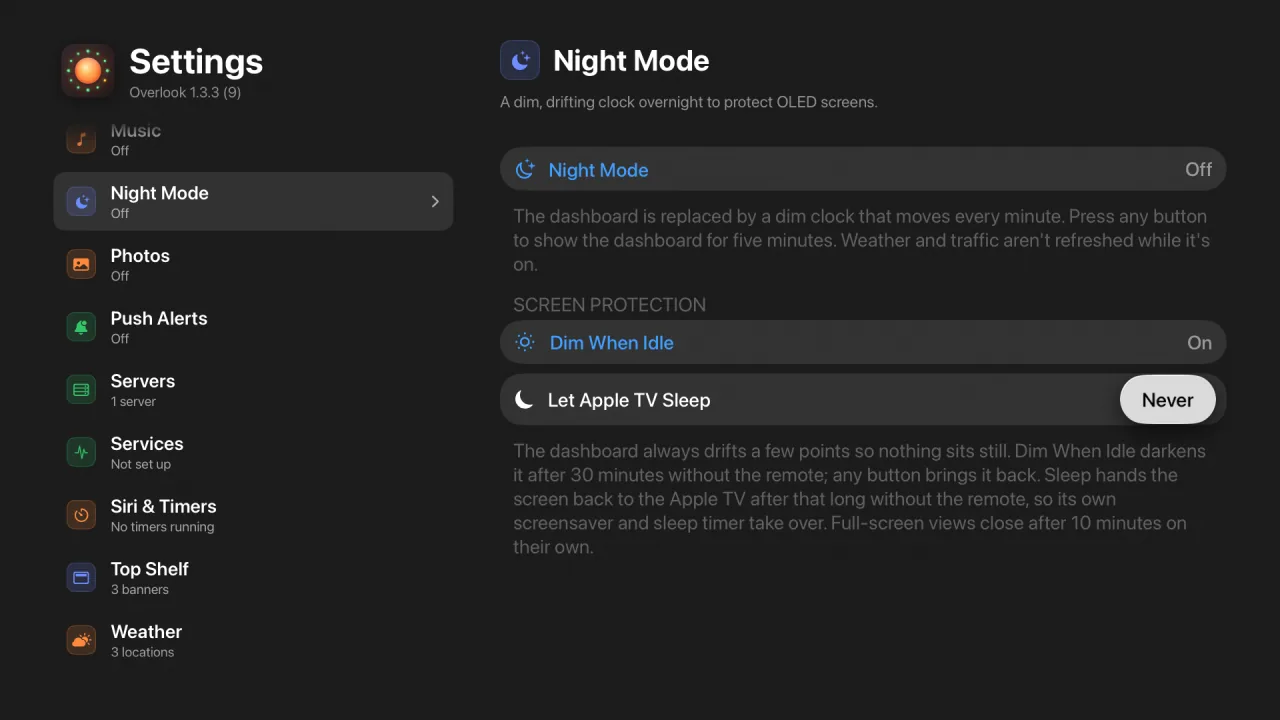
After 30 minutes without the remote, the dashboard fades darker over a few seconds. Any button brings it straight back. It’s on from the start, as Dim When Idle in Settings › Night Mode › Screen Protection.
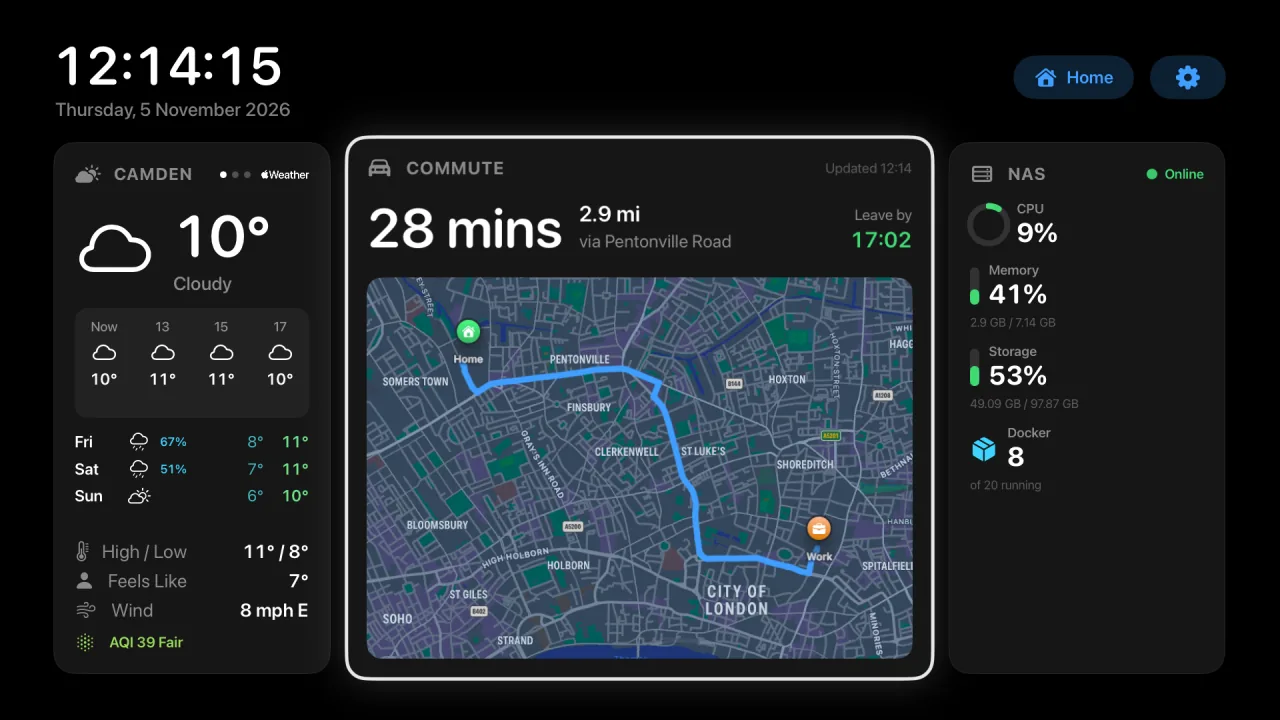
In use.
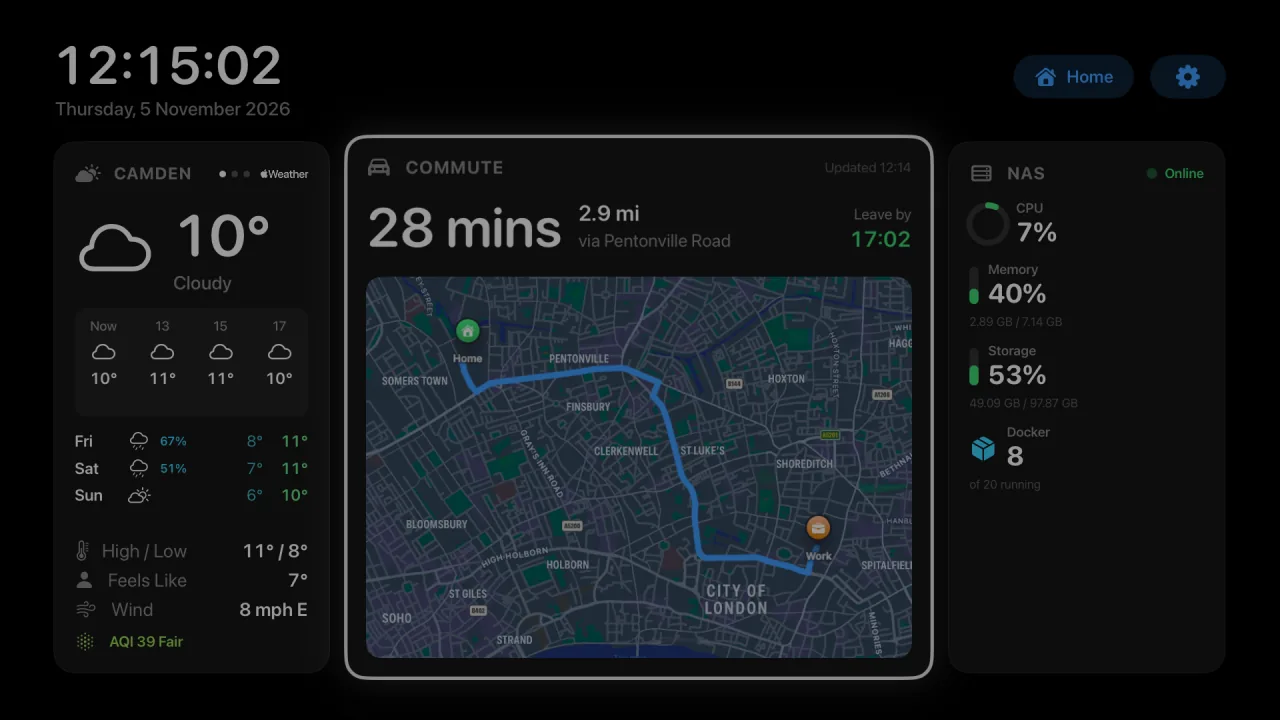
After 30 minutes without the remote.
Good manners after dark
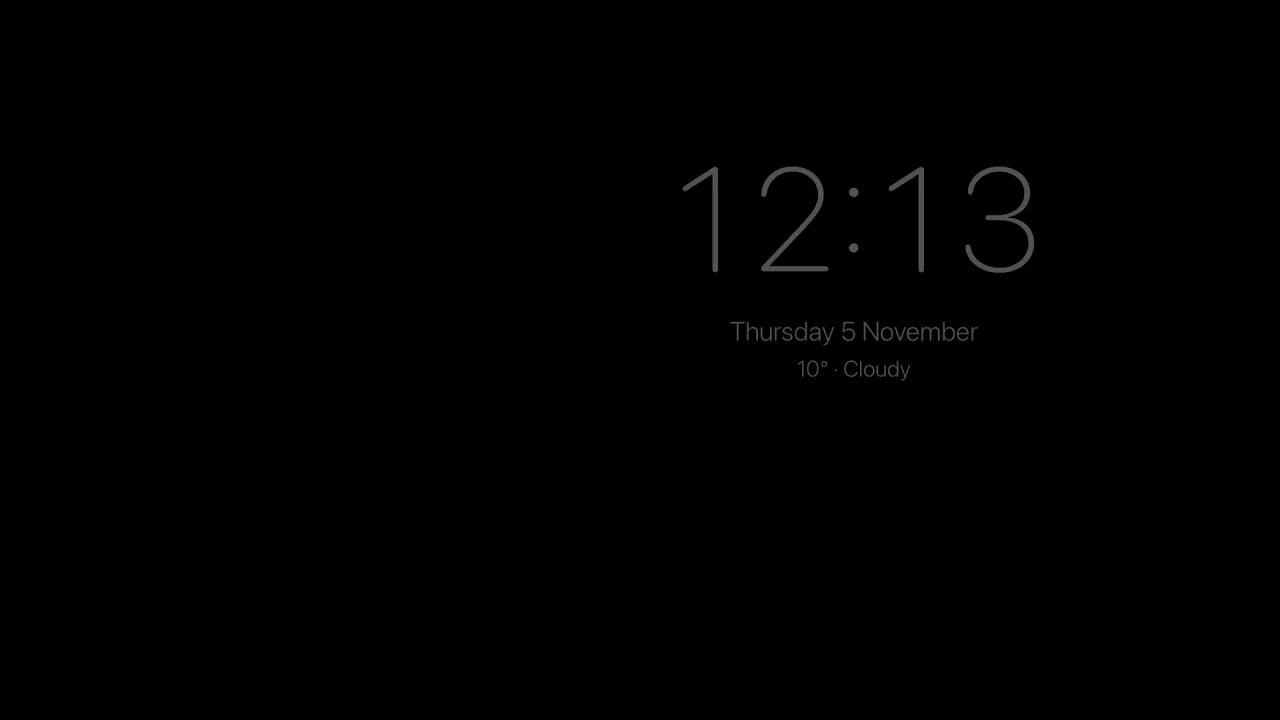
Night mode is on from the start, from 23:00 to 06:30, and you can change the hours. Overnight, the dashboard gives way to a dim clock with the time, date and weather on pure black, and any wallpaper is turned off.
The clock jumps to a new spot every minute, anywhere in a wide area around the centre, so it never holds a position. Press any button and the dashboard comes back for five minutes. Weather and traffic aren’t refreshed while night mode is on.
Or a clock that bounces
Turn on Bouncing Clock and the night clock glides corner to corner like the old DVD screensaver, changing colour every time it hits an edge. With Reduce Motion on, it goes back to the drifting clock.
Keep watching for the corner.
Things that wait for you move too
- An urgent push alert waits until someone dismisses it, which could be all night, so it drifts slowly. At night, after five minutes, it dims and wanders further.
- Full-screen views, such as a card opened full screen or a paused photo slideshow, close themselves after 10 minutes untouched. Settings closes after 15.
Or let the Apple TV sleep
Overlook keeps the Apple TV awake by default, because that’s the point of a dashboard. Set Let Apple TV Sleep to a number of hours and, after that long without the remote, Overlook hands the screen back to tvOS, so its own screensaver and sleep timer take over. It waits while a kitchen timer is running.
No app can promise an OLED won’t burn in. Overlook does what it can on its side, and your TV’s own panel protection, such as pixel shift and panel refresh, still applies on top. While you’re using the dashboard, the top bar and card edges are still there; the drift and dimming keep them moving and darker.
Arrange it your way
Every card can be moved, resized or hidden, and you can build as many dashboards as you like.
Cards that fit together
The dashboard is a 4-by-2 grid of cards: Weather, Commute, Calendar, Cameras, Home, Photos, Clock, Music, Servers and Services. Each card shows more as it grows. A small Weather card shows the temperature, while a large one adds the hourly forecast, air quality and more.
Cards stay in the order you set, so rows can stagger, such as small and wide over wide and small, instead of jumping back to fill earlier gaps.
- Small 1×1
- Wide 2×1
- Tall 1×2
- Large 2×2
Rearrange in seconds
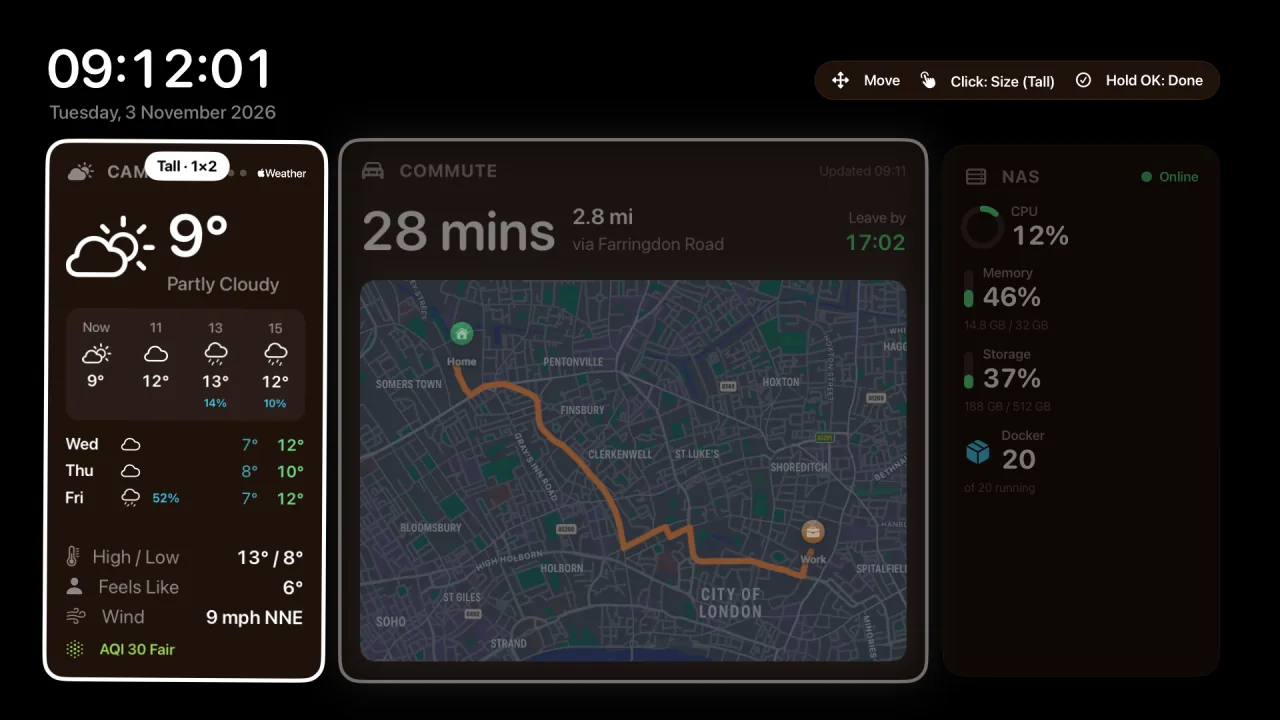
- The card you’re editing
- Current size
- The controls, always on screen
Highlight a card and press and hold the clickpad, then choose Move & Resize.
Swipe in any direction to move the card. It swaps places with its neighbour.
Click to cycle through the sizes: small, wide, tall and large. The tag on the card shows the current size.
When you’re done, press and hold the centre of the clickpad again (Hold OK on the hint bar).
Tip. If there isn’t room for every card, Overlook tells you which ones are hidden, so try making another card smaller.
A dashboard for every room, or every time of day
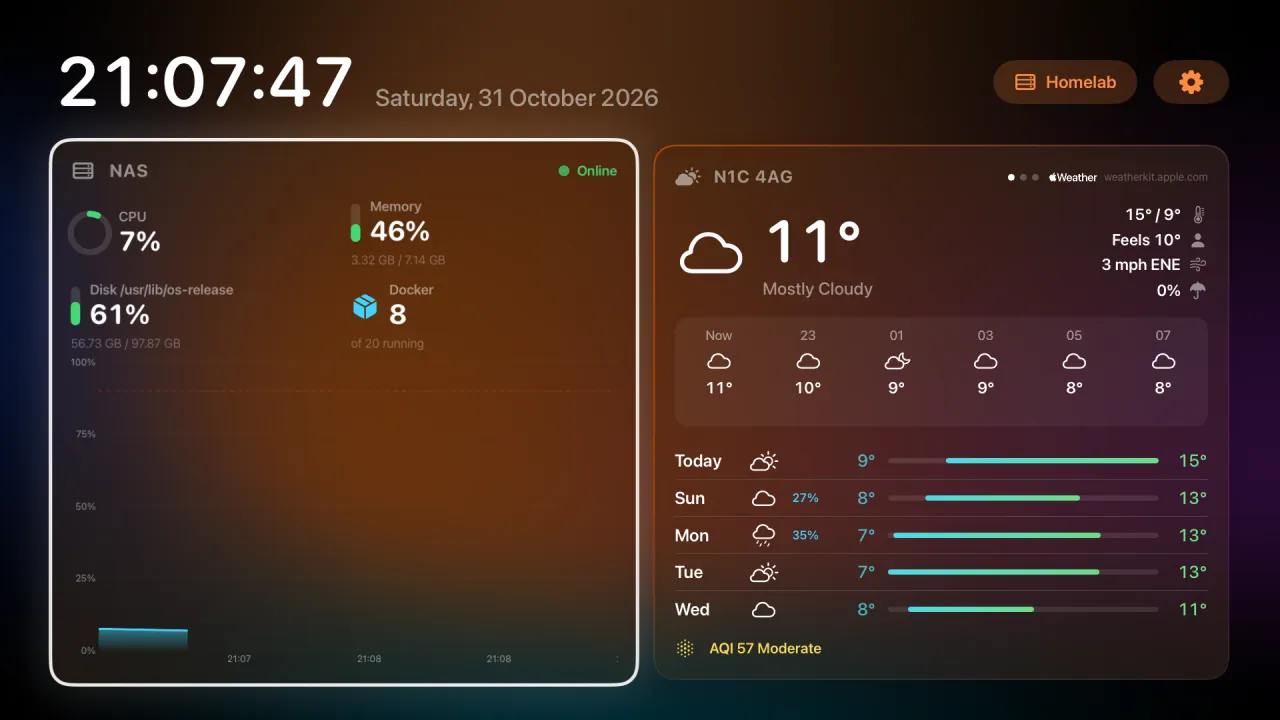
- Create dashboards in Settings › Dashboards, starting from a template: Everything, Home & Cameras, Homelab or Blank.
- Give each one a name and an icon, and choose which cards it shows.
- Switch between them with the dashboard button at the top of the screen.
- Or ask Siri, using your own dashboard names: “Open Homelab in Overlook”, “Show the Family dashboard in Overlook” or “Switch Overlook to Kitchen”. Overlook comes to the front on that dashboard and closes whatever was covering it.
- Set a start time and Overlook switches automatically. For example, Morning with commute and weather, Evening with cameras and the Home card, and Homelab overnight.
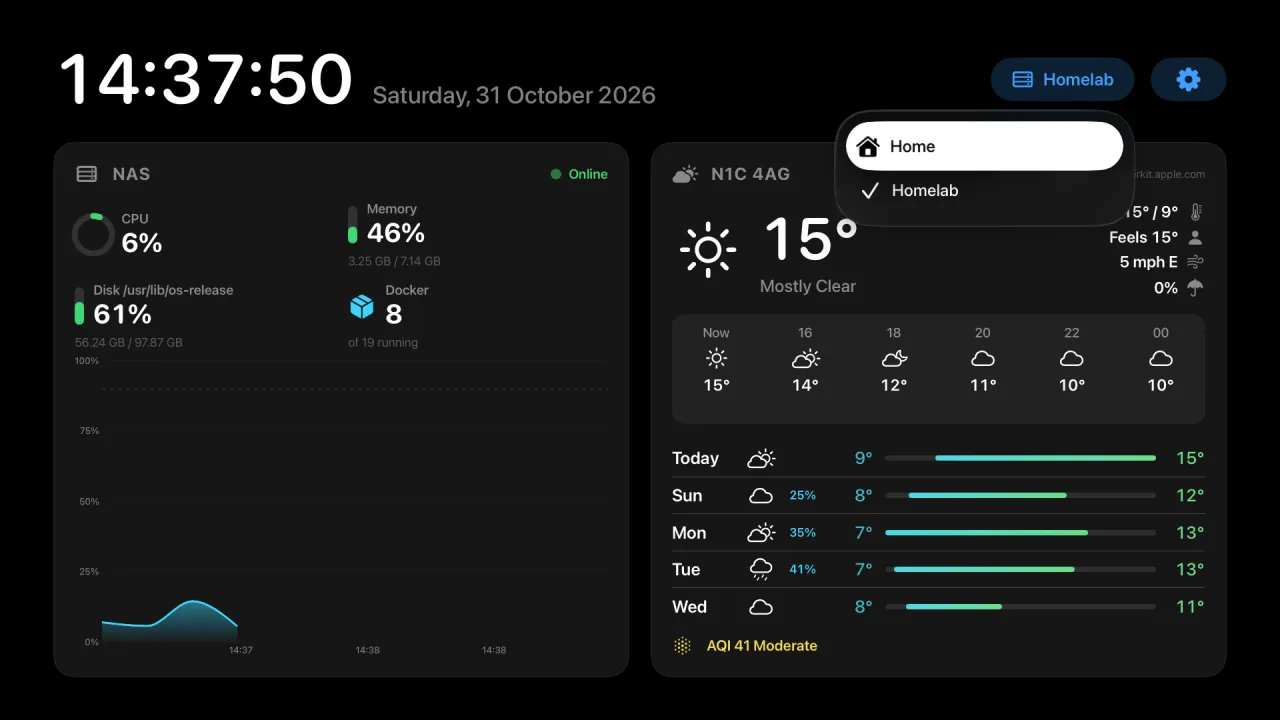
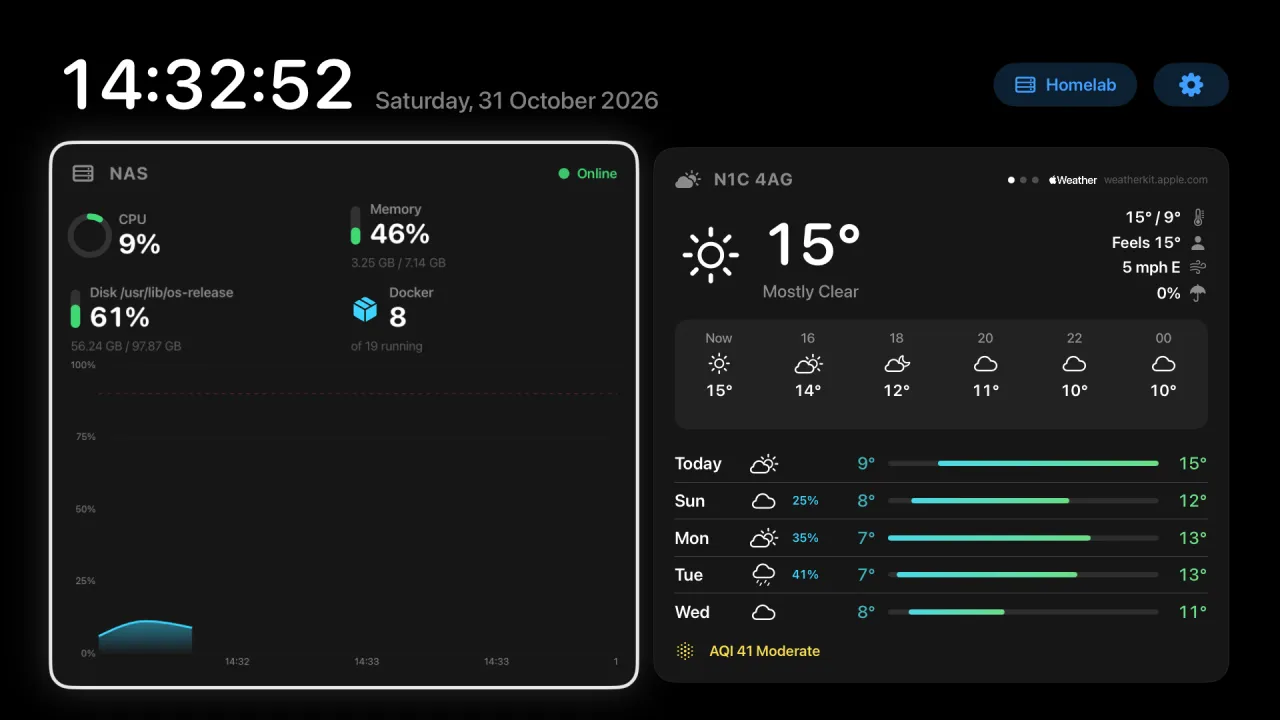
Homelab: servers and services, for when you’re tinkering.
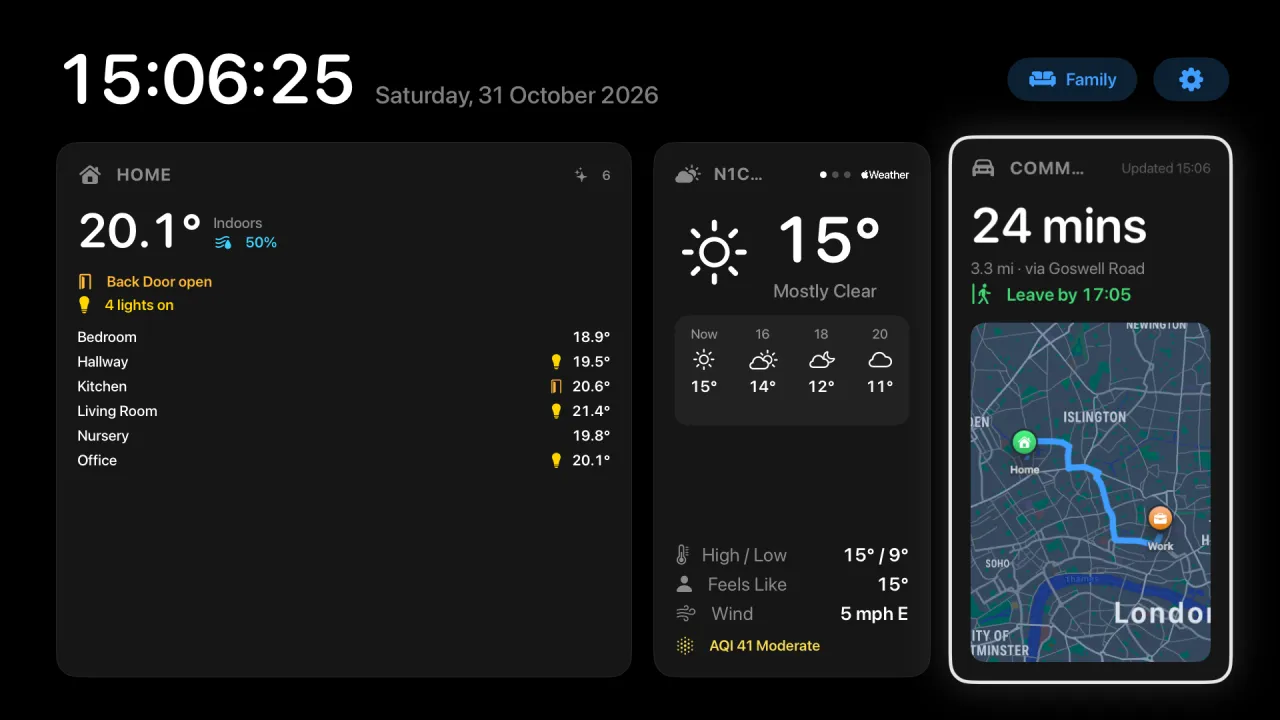
Family: the house, the weather and the drive to work.
Synced with iCloud
Your dashboards follow you to every Apple TV on your account, and each TV can show a different one.
Separate for each person
Everyone on the Apple TV gets their own dashboards and settings.
Pick your colours
Six colour schemes change every card at once (Settings › Appearance).
Liquid Glass
The cards turn to glass, with a slow aurora or your own photos glowing through from behind.
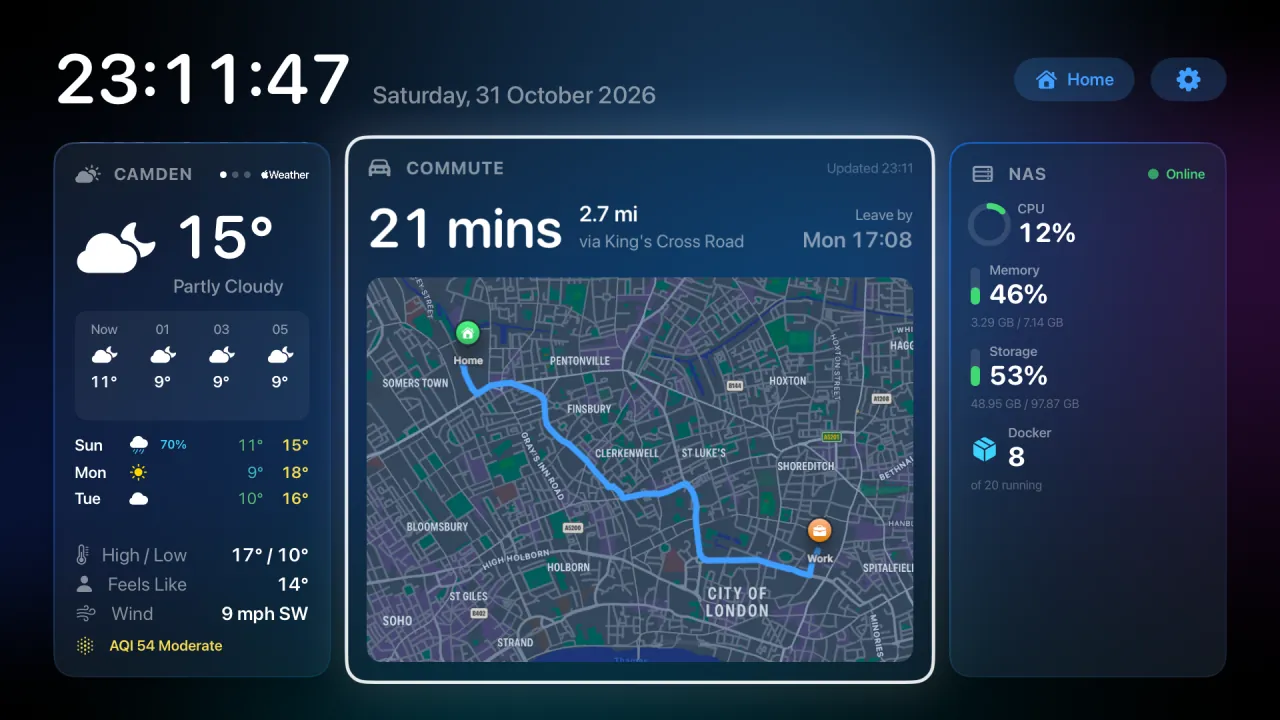
Over the Photos wallpaper, blurred so the cards stay readable.
Ember with Liquid Glass. The aurora takes its colour from the scheme.
Every colour scheme, every screen
- Works with all six colour schemes.
- Full-screen card views use the wallpaper too.
- Safe for OLED: Aurora never stops moving, Photos changes regularly, and night mode always switches to black.
Your photos, on the big screen
The Photos card is a slideshow from iCloud Photos on your Apple TV. Pick Favourites, All Photos or any album, including Shared Albums. Make a Shared Album for the family and anyone can add photos from their phone. They turn up on the TV.
- Photos crossfade with a slow pan and zoom, with the date and album in the corner.
- Change photo every 10 seconds to 2 minutes, in order or shuffled.
- Open it full screen: left and right skip, and a click pauses.
- Each person on the Apple TV sees their own library.
- Photos are only displayed, never copied or uploaded.
Needs iCloud Photos turned on on the Apple TV.
Redesigned server view
The full-screen server view is rebuilt so the numbers that matter are the biggest things on it.
- Headline tiles with large rings for CPU, memory and storage, 30-minute sparklines for CPU and memory, and live network rates.
- One Activity chart showing CPU and memory over the last 30 minutes.
- Containers listed busiest first, each with a CPU bar, and stopped containers clearly marked.
- Compact panels for per-core CPU and temperatures.
- Docker bind mounts are no longer listed as separate disks, so storage figures and disk alerts are accurate.
Set up from your iPhone
Typing URLs, tokens and postcodes with the Siri Remote is the slowest part of setting up any TV app. Overlook skips it.
- Scan, type, save
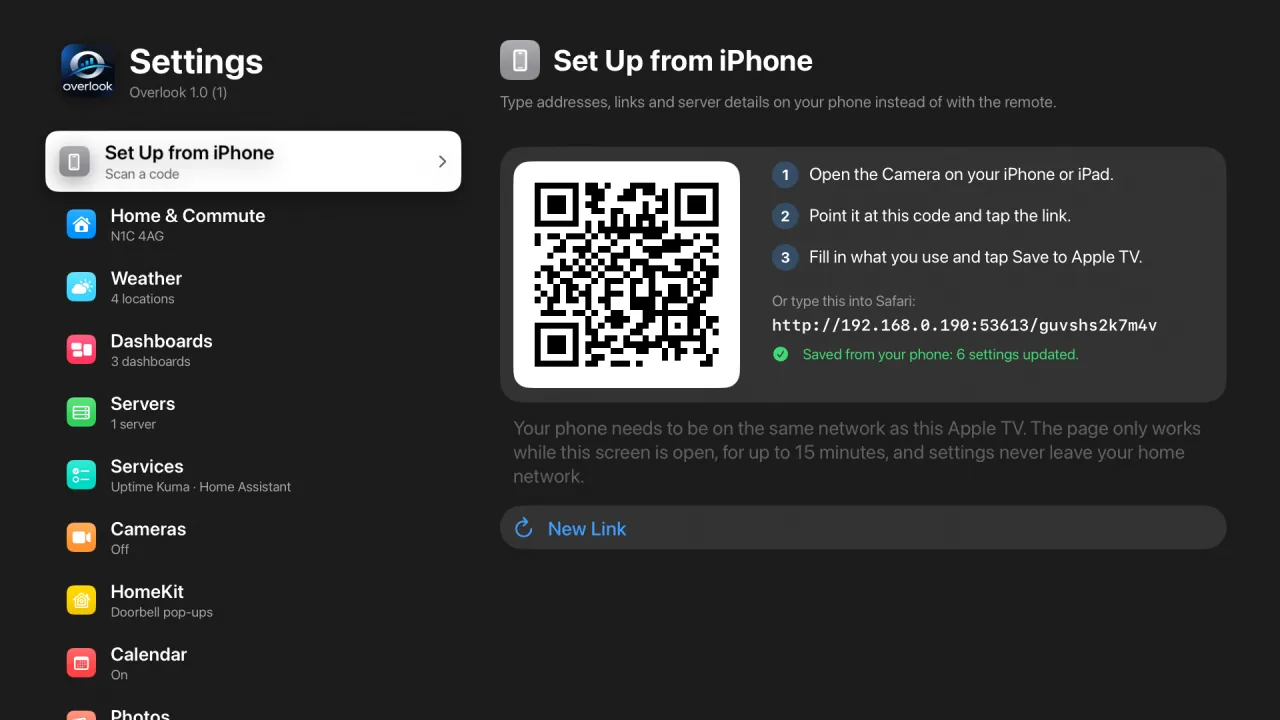
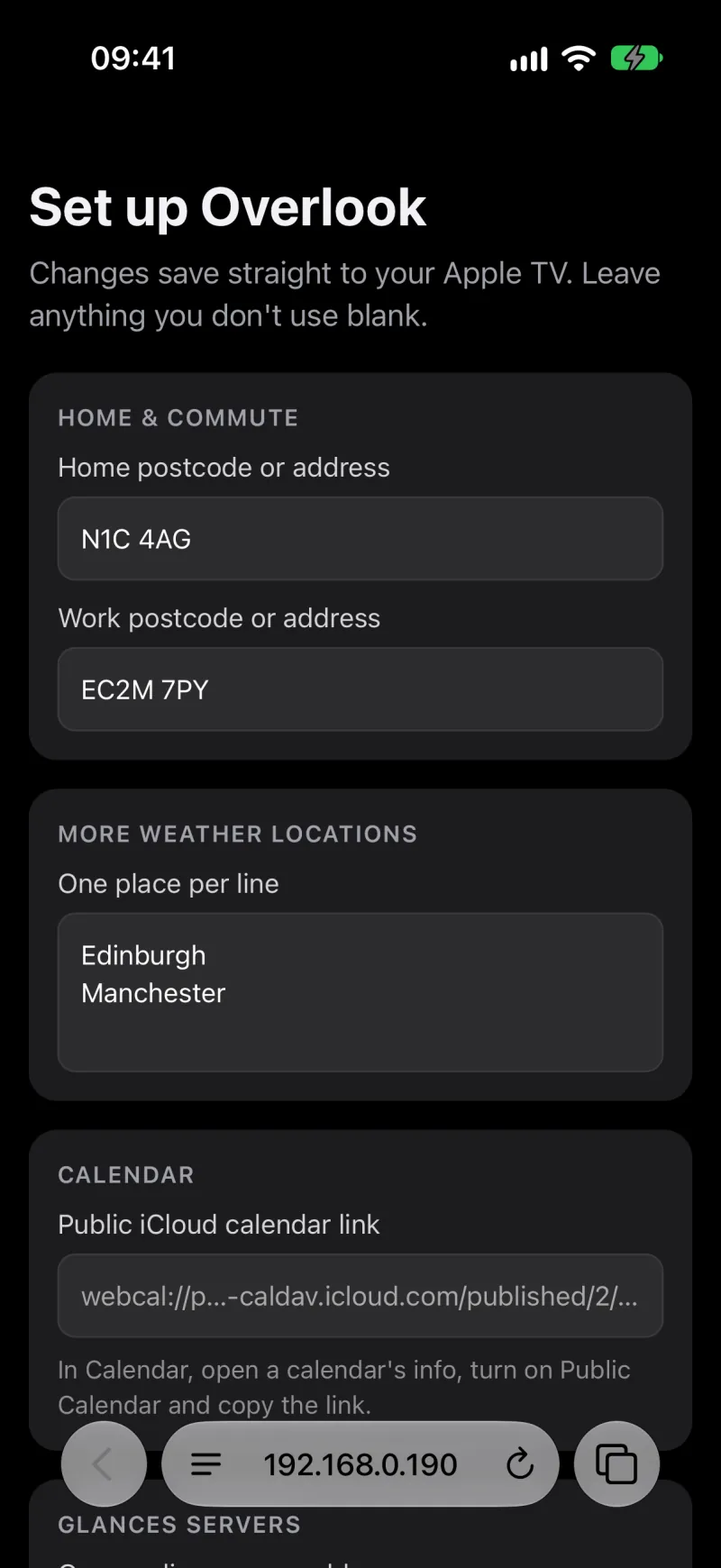
- Open Settings › Set Up from iPhone, scan the QR code with your iPhone’s Camera, fill in the form in Safari and tap Save. The TV updates straight away.
- What it covers
- Home and work addresses, extra weather locations, calendar links (one per line, as name and link), Glances servers, Uptime Kuma and Home Assistant (server, token and entities).
- Private by design
- The page is served by the Apple TV itself on your home network, so nothing goes through the internet or an account. The link has a random code and only works while that Settings screen is open, for up to 15 minutes. Your Home Assistant token is never sent back to the phone.
Privacy, briefly
- There’s no account. There’s nothing to sign up for.
- No tracking and no analytics. I don’t know how often you open it, and I’d like to keep it that way.
- Settings sync through your own iCloud account, not a server of mine. I don’t have one.
- Glances, Uptime Kuma and Home Assistant are reached directly from the Apple TV. That traffic stays on your network.
- Your Home Assistant token stays in the Apple TV’s Keychain. It isn’t synced anywhere.
- Weather comes from Apple and traffic from Apple Maps. Air quality comes from Open-Meteo, which is sent your home location rounded to about 100 metres, and nothing else.
What you need
- Apple TV
- Apple TV HD or Apple TV 4K, running tvOS 26 or later.
- For cameras
- A HomeKit home hub. Conveniently, your Apple TV can be the hub.
- For server stats
- Glances v4 on each server, reachable from the Apple TV.
- For photos
- iCloud Photos turned on on the Apple TV.
- For the calendar
- One or more published calendar links (iCloud or Google).
- For music
- An Apple Music subscription.
Questions people ask
Is there a subscription?
No. It’s £4.99, paid once, and updates are included. There’s no Pro tier waiting further down the page.
Does it work outside the UK?
Yes. Weather, maps and traffic work wherever Apple’s do. Units and the clock follow your region: °C, mph, miles and a 24-hour clock in the UK, °F, inHg and a 12-hour clock in the US, and km and km/h in Europe and Australia. Postcode lookup is tuned for UK postcodes, and full addresses work anywhere.
Do I need a server, or HomeKit?
No. Give it a postcode and it’s a very good weather and traffic clock. Cameras, servers, services, the calendar and music are all optional and stay off until you set them up.
Which cameras work with Overlook?
Any camera that works in Apple’s Home app, including HomeKit Secure Video cameras and doorbells.
Will the doorbell pop-up interrupt what I’m watching?
No. tvOS doesn’t let apps appear over other apps, so pop-ups show only while Overlook is on screen. That makes it ideal for an always-on hallway or kitchen display.
Does Overlook record or upload my camera footage?
No. Video is streamed live from your cameras through HomeKit on the Apple TV and is never recorded or sent anywhere.
Can I turn lights on and off?
Yes. Run any scene you’ve created in the Home app, or switch individual lights, switches, outlets and fans on and off from the Home card’s full-screen view, and dim lights and adjust HomeKit thermostats there too.
Can it show what’s playing on Spotify or the Music app?
No. tvOS doesn’t let one app see what another is playing. Overlook can play Apple Music itself and show that on the Music card.
Will it burn in my OLED TV?
Overlook does everything it can to prevent it: the dashboard drifts and dims, and night mode swaps in a dim, moving clock. No app can guarantee it, so your TV’s own panel protection still applies on top. How it protects your screen.
Will the screensaver kick in?
Not by default: Overlook keeps the Apple TV awake while it’s open. If you’d rather it slept, set Let Apple TV Sleep to 2, 4, 8 or 12 hours without the remote, and tvOS’s own screensaver and sleep take over from there. It waits while a timer is running. Your TV’s own power settings still decide when the panel switches off.
Can everyone at home have their own layout?
Yes. If your Apple TV has more than one user, each person gets their own dashboards, colours and settings.
Can I hide a card I don’t use?
Yes. In Settings › Dashboards, turn off any card for that dashboard.
Can different Apple TVs show different dashboards?
Yes. Dashboards sync through iCloud, but each Apple TV remembers which one it’s showing.
Is there an iPhone or iPad version?
No. Overlook is built for a television on the other side of the room, and that’s the only thing it does.
Something isn’t working. Who do I tell?
Email [email protected]. It goes straight to the person who wrote the app.
Give the TV something to do.
Overlook is £4.99 on the App Store, once. No subscription, no ads, no account.